

TL;DR
- macOS’s cleanup for a removed software update declaration has never worked. It leaves
ManagedProductMarketingVersionbehind, and from then on every scan asks Apple for the old version and nothing newer, for about three months. Delete it as root (and please don’t write it yourself). Retargeting a declaration in place is fine; taking it away from a Mac that hasn’t installed it yet isn’t. - Remove a declaration while someone’s logged in and the Mac is still downloading, and the download usually wins. The Mac finishes the update you just took away. Remove at
prepared. - When
AutoInstallProductKeys"does nothing," it’s usually priorities. Its download is the lowest priority Software Update has, so an update that a declaration or the CLI prepared turns it away, and a superseded update never arms. - A declaration can delete itself a few seconds after it arrives and take a stale prepared update with it: no 17 GB of free space, no timing. The predicate is below.
- The surprise "schedule the software update for tonight" prompt is Software Update re-queuing an update without a password, and Cancel wipes
AutoInstallProductKeys.
The last post ended with Macs updating overnight. This one is about the mornings they didn’t.
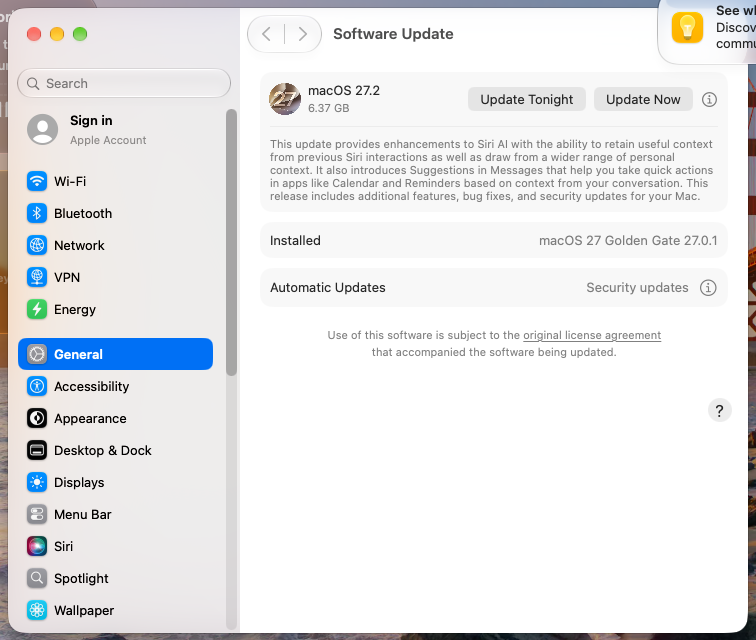
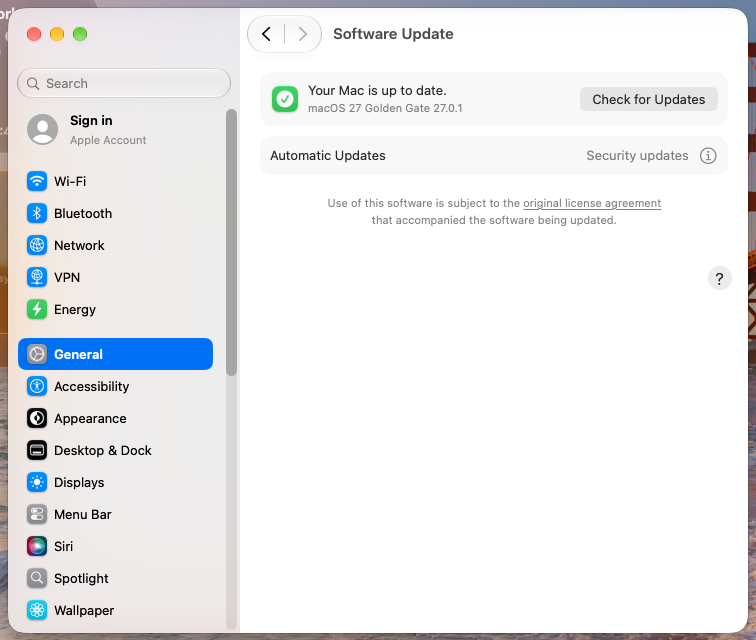
Say 27.2.1 is out, the script from the last post has added it to AutoInstallProductKeys on every Mac (I’ll just call that the key from here on), and most of them install it overnight, like they’re supposed to. A few wake up on 27.0.1. Same as yesterday. You check one: 27.2.1 is in AutoInstallProductKeys, nothing’s downloading, and System Settings is offering 27.2. Not 27.2.1. 27.2, the release 27.2.1 replaced. Every scan in the log is asking Apple for 27.2 by name.
Those Macs all had a software update declaration for 27.2 at some point, and it went away before they installed it. When a declaration goes away, macOS cleans up after it by setting ManagedProductMarketingVersion to nil. The setter only accepts strings. So the cleanup has never worked. Not once, on any Mac, whatever your MDM. The key stays, and the Mac keeps asking Apple for 27.2.
For how long? Until Apple stops serving 27.2, about 90 days after the next release replaces it.
In the last post, back-to-back releases kept resetting the ramp, so automatic updates could go a month without happening. I thought that was bad. This bug says "hold my beer." Three months stranded on an old release, missing every security fix in between, and that’s before you count how old the release the Mac is running already was: a 27.0.1 Mac stranded in November is still offered nothing newer than 27.2 in February, by which point 27.0.1 is more than four months old.
Chasing that one led to the rest of this post: why the key sometimes does nothing, where that password prompt comes from, and how to get a declaration to delete itself on purpose. Each section starts with what you’d see, then why it happens, how to check, and what to do. I’ve tried to explain the why every time, because the next odd case won’t be in here.
Before that: Greg Neagle has written autoupdatehelper, a Swift take on the script from the last post. It builds its keys from RecommendedUpdates only, adds pending Safari and Command Line Tools updates, can wait a set number of days after an update appears before keying it (updateDelayDays, an easy way to run your own ramp), and logs to the unified log. If you’d rather deploy a binary than a JXA script, start there.
Three things that decide everything
Almost every case here comes down to one of three pieces of state.
- The pin.
ManagedProductMarketingVersionin/Library/Preferences/com.apple.SoftwareUpdate.plist. While it’s set, every scan asks Apple for that one version and gets nothing newer. Declarations set it. Nothing on the Mac reliably clears it after they’re gone. - The prepared update, and its priority. Software Update works on one update at a time. "Prepared" means downloaded and staged to apply at the next restart. Control of that one slot goes to one client at a time, with a priority:
Background(200) for the key’s background download,ClientInitiated(300) for nearly everything else. A lower priority can’t take the slot from a higher one. - The arm. To restart and install with nobody there, Software Update needs the user’s password. A password unlock after the prepare captures it (Software Update calls that the stash), and then it arms: it schedules a
dasdactivity that fires during a Smart Power Nap, once the Mac has been locked with the display off for about two hours.
Stuck on an update it should have moved past
Applies to Macs that have had a DDM software update declaration.
What you see. A Mac on 27.0.1 keeps offering 27.2, days after 27.2.1 came out. Your 27.2.1 key does nothing, and DDM status says it’s pending 27.2. Somewhere along the way the Mac had a software update declaration, and it went away (removed, rescoped, or replaced by one that doesn’t cover it) before the Mac installed what it asked for.
Why. When an enforcement declaration is scheduled, softwareupdated writes its target version into ManagedProductMarketingVersion. From then on, every scan sends that version to Apple as RequestedProductVersion, and Apple answers with exactly that version. That’s how a declaration gets you 27.2 instead of whatever’s newest, and while the declaration is there, it’s what you want.
Two places in macOS try to clear the key once the declaration’s job is done. One of them works.
| Path | When it runs | Works? |
|---|---|---|
| The declaration’s own fallback | While the declaration is still active: once the Mac is on the declared version, its next pinned scan logs Managed PMV (27.2) is the same as current OS, then No DDM updates found, fallback to scanning without PMV, and clears the key |
Yes |
| The clear on removal | When the declaration is removed or changed: SoftwareUpdateSubscriber sets the key to nil |
Never. The setter only accepts a string, so nil fails a type check before anything is written: SUPreferenceManagerErrorDomain Code=3 |
So it comes down to which happened first. A Mac that reached the declared version while the declaration was still there is clean. A Mac that lost the declaration first keeps the pin.
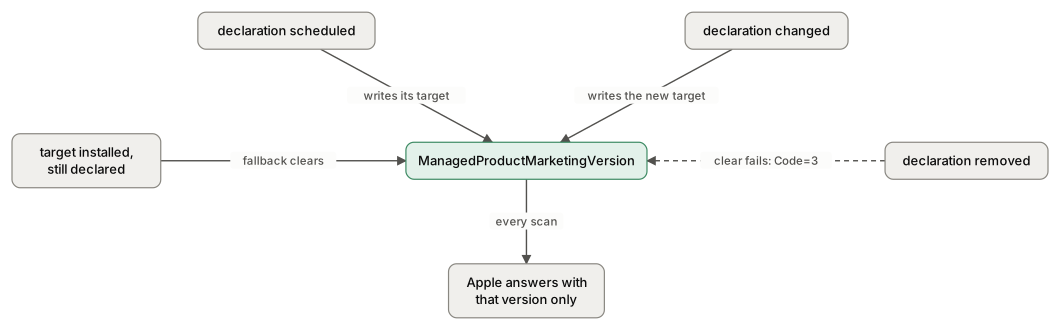
That’s a bug. The removal code clearly means to clear the key, and it can’t, because it hands nil to a setter that only takes strings. It isn’t one MDM’s problem either: I get the same Code=3 from my lab MDM, KMFDDM on NanoMDM. And nothing else on the Mac cleans up after it. In my lab, a VM that lost its 27.2 declaration went on asking Apple for 27.2 at every scan, reboots included, and Apple kept answering, because it serves superseded versions to anyone who asks by name.
It does fix itself, eventually. Once Apple stops serving the pinned version, the pinned scan gets "no match" and softwareupdated deletes the key on its own. That’s about 90 days after the version was replaced, so a Mac pinned to 27.2 should come unstuck around early February. That’s three months of security fixes the Mac never sees, which makes this bug a security problem as much as an annoyance. And the unpin only fixes the scan: if an old ClientInitiated update is still prepared, the key is still refused afterward (the priorities section covers that).
How to check. On a Mac with no active enforcement declaration:
defaults read /Library/Preferences/com.apple.SoftwareUpdate ManagedProductMarketingVersion
Any value is a pin; "does not exist" is what you want to see. The scan says so too:
/usr/bin/log show --last 1d --predicate 'process == "softwareupdated"' | grep -E 'a PMV was set|requestedPMV:[0-9]'
This system is managed and a PMV was set (27.2) (on a supervised Mac) or requestedPMV:27.2 (on any Mac), with no declaration for 27.2, is the stuck case.
What to do. Delete it as root:
sudo defaults delete /Library/Preferences/com.apple.SoftwareUpdate ManagedProductMarketingVersion
The next scan logs Setting requestedPMV to nil, no restart needed. Wait ten seconds or so before you scan, because the first scan right after a delete can still answer from the pinned view. And only do this on a Mac with no active enforcement declaration, because an active one writes its target back at its next action. (Those Macs don’t need it anyway: the declaration’s own fallback clears the key once the Mac installs the target.)
A declaration can’t clear it for you, with one exception. One for the installed version is rejected before it scans (Invalid case - trying to set a version ... that's the same as current OS), and one for an older version is invalid. One for a version Apple doesn’t serve, like 27.9, does clear it on arrival, and the self-canceling declaration below puts that to use.
If something’s already prepared, clearing the pin is only half the job. The priorities section covers the other half.
Changing declarations without stranding Macs
If you only ever used DDM the way it’s drawn up, the rule would be "never take a declaration away from a Mac before it’s installed the target." Real rollouts don’t work like that. Say you’ve given everyone three weeks to install 27.2, and 27.2.1 comes out in week two. You want to swap the declaration to 27.2.1, same scope, same deadline you already announced, so nobody has to upgrade twice. That works. What matters is whether each Mac is left with a declaration, not whether it keeps the same one.
| What you do | The pin | What’s prepared | Verdict |
|---|---|---|---|
| Retarget in place (27.2 to 27.2.1, same scope and deadline) | Moves to 27.2.1; clears once the Mac installs it | Purged; 27.2.1 downloads | Safe, and what you want |
| Change only the deadline or the time of day | Rewritten to the same target | Purged and downloaded again | Safe, but a full download for nothing |
| Remove it from Macs already on the target | Clears itself at the next scan | Nothing to purge | Safe |
| Remove it from Macs below the target | Stays at the old target | Purged; downloaded again if your keys still include the old target | The stuck case |
Any change to an enforcement declaration cancels first, the way a removal does, then schedules the target again. Whatever’s prepared is purged within seconds, with no free-space check, and every Mac in scope downloads the target from scratch. For a retarget that’s what you want: the prepared 27.2 goes and 27.2.1 replaces it. For a deadline tweak it’s 17 GB or so per Mac for nothing, so batch your edits and keep your content cache on. A change that lands mid-download is harmless; the new target wins. Removing a declaration from Macs that already reached the target is safe because a leftover pin to the installed version clears itself (Apple answers "no match" for a version that isn’t newer than the one installed). The last row covers ending a rollout early, excluding a Mac, or scoping the replacement to a narrower group, like 27.2.1 for 26.x Macs only, on the theory that the 27.0.1 Macs will catch up by themselves. They won’t.
So the rule is:
Never leave a Mac that’s below a declaration’s target with no enforcement declaration at all. Retarget in place rather than swapping one declaration for a narrower one. When a Mac has to come out of scope before it’s updated, clear the pin as root right after.
That said, the real world breaks this rule all the time. Dynamic groups recalculate on their own schedule, a Mac gets excluded for a good reason, someone rescopes a declaration in a hurry, and a Mac that was offline for two weeks comes back to find its declaration gone. You won’t always know which Macs got stranded, or when. That’s what the rest of this post is for: the root delete above for the pin, the purge routes in the priorities section for the prepared update it leaves behind, and a declaration that finds and fixes stale prepares by itself. Follow the rule to keep the numbers small, and run the workarounds anyway.
Removing a declaration while a Mac is still downloading
Applies to Macs that have had a DDM software update declaration.
What you see. You removed or rescoped a declaration, and most Macs threw its update away like they should. Some didn’t. A day later they have the old target prepared, no declaration, a pin to the old target, and a key that gets refused. Right after the removal, DDM status for those Macs shows install-state downloading, install-reason ["mdm"], and a "Software update failed." failure reason stamped at the minute you removed it. (That’s one of the places the generic "Software update failed." comes from.)
Why. A removal does one thing to the update, once. remotemanagementd hands it to SoftwareUpdateSubscriber, which waits while softwareupdated forgets the declaration, disarms the DDM deadline (not install-tonight) and sends a single cancel at ClientInitiated. That cancel doesn’t care who made the update, what state it’s in or what priority it has. What happens next depends only on where the Mac was.
| Where the Mac was | What the removal does |
|---|---|
| Nothing prepared, or prepared (by the declaration, the key, the CLI or a user click, armed or not) | Purged in a second or two |
| Already applying the install | Refuses the cancel, and the install finishes |
| Downloading or preparing, nobody logged in | softwareupdated owns the download, nobody asks for it again, and it’s purged |
| Downloading or preparing, with a user logged in | Usually survives, and finishes with no declaration on the Mac |
The last row is a race, and I made it happen on purpose in a VM: assign a declaration, log in, let the download start, remove the declaration. The log shows the cancel killing the download, and then, about a second later, the user’s session asking for the same download again. As far as I can tell, every declared install is handed to the user’s SoftwareUpdateNotificationManager twice, and it runs the two one after the other, so the second request is already waiting in line. It comes from the same client at the same priority, so it’s handed the slot in the middle of the cancel. The cancel fails (7509 AccessLost; the subscriber logs Error canceling and remotemanagementd logs Failed to remove configuration), and the download carries on to prepared. Nothing in that second request checks whether the declaration still exists. That’s a bug. The server sent a removal, the Mac logged it, and the Mac finishes the removed declaration’s update anyway.
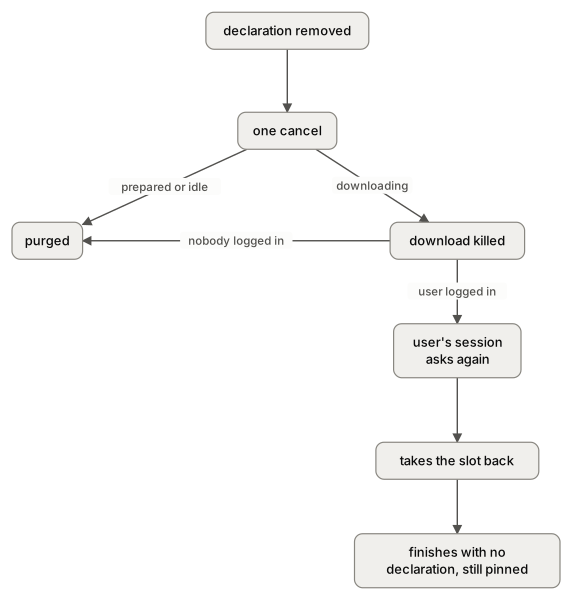
The survivor ends up worse off than a plain stuck Mac. Its update is ClientInitiated, so the key can’t replace it. The pin clear failed as always, so every scan still asks for the old target. While that pin is there, the old target is the newest thing on offer, so if its key is still set, it arms and installs the old version, and the user upgrades twice after all. Once you clear the pin, it’s superseded and never arms. Either way it needs the root unpin plus one of the purge routes in the priorities section.
Two related cases:
- Retargeting mid-download is fine. The cancel loses the same race at first, but the user session’s request then fails with "The available software updates have changed," and the new target wins. A retarget with the update already prepared is a clean purge and a fresh download.
- A change followed soon after by a removal is the worst timing there is. The change purges every prepare in scope and restarts every download. Remove it half an hour later and most of those Macs are mid-download with users logged in, which is exactly the losing case. Give the downloads time to finish between a change and a removal.
How to check. On the Mac, look for Error canceling from SoftwareUpdateSubscriber and Failed to remove configuration from remotemanagementd at the removal time, then an update prepared at ClientInitiated with no declaration (the state file in the priorities section shows it). In DDM status, a Mac that lost the race shows downloading with the stamped failure reason right after the removal, and prepared later. One whose removal purged cleanly shows none with the same stamp.
What to do.
- Remove or rescope only when the Macs in scope show
preparedor nothing at all, notdownloading. Prepared Macs always purge cleanly. - If you can’t wait, a logout makes it clean. With the user logged out, the download continues under
softwareupdatedalone, and a removal purges it. - Take the old version out of your install-tonight keys before the removal. The removal leaves the pin, and with the pin and the old key both still there, the next keyed check downloads the old target straight back.
- Clear the pin as root afterward, on every Mac that was below the target.
- For Macs that lost the race anyway, the self-canceling declaration finds them by itself. It only acts on a Mac that’s already
prepared, so it never meets this race.
The key does nothing: update priorities
Applies to every keyed Mac.
What you see. When 27.2.1 came out, my lab’s base VM still had 27.2 prepared, because I’d prepared it with softwareupdate --download back when 27.2 was new. I keyed 27.2.1 on a clone and kicked off a background check. Software Update picked 27.2.1, exactly like it should, and then refused to download it. install.log said why:
Code=7507 ... priority downgrades are not allowed (current:ClientInitiated requesting:Background)
The update I’d prepared with the CLI outranked the key. On your Macs it looks the same: the key for the newest release is right there in the plist, and the Mac sits on an older prepared update and never downloads the new one. Or there’s no error at all: an older update is prepared, and it never arms. (A pinned Mac doesn’t log the refusal, because its pinned scan only offers the old target, which is what’s prepared. It shows up once you clear the pin.)
Why. Software Update only works on one update at a time, and it’s strict about who gets to touch it. SUMacController hands the slot to one client at a time, each with a priority. Two priorities matter on macOS.
| Priority | Value | Who uses it |
|---|---|---|
Background |
200 | Only softwareupdated‘s own background download, which is the path the key uses |
ClientInitiated |
300 | Everything else: softwareupdate on the command line, DDM installs (logged in or out), the "Update Tonight" and "Update Now" buttons, the password stash at an unlock, the install steps themselves and every cancel |
The rules: a request from the same client at the same or a higher priority takes the slot, and a lower one is refused. A request from a different client needs a strictly higher priority. Scans have their own, separate access control and never change the update’s priority.
So the key’s download is at the bottom of the pecking order. That’s fine when nothing’s prepared, or when the key prepared what’s there (Background against Background takes over). It’s a problem when the prepared update came from anywhere else. A declaration or a softwareupdate --download leaves a ClientInitiated prepare, and every keyed background check after that is refused.
One raise is normal. The first password unlock after a keyed prepare stashes the password at ClientInitiated (priority upgrade from Background to ClientInitiated allowed), then arms. That raise lives in memory only. After a restart the update is back to Background, because what’s saved on disk is the priority it was prepared at. In between, a newer keyed release is refused on that Mac, which is fine: it’s armed for tonight, and the newer one follows.
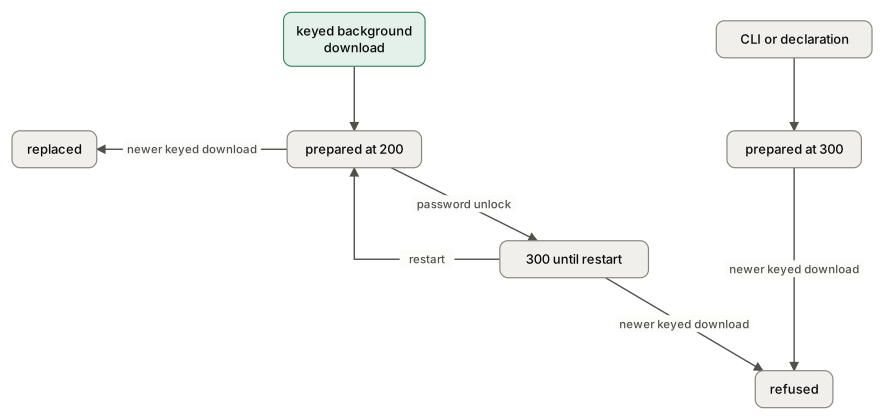
What actually keeps a Mac stuck is that a superseded prepared update won’t arm. At the unlock, Software Update compares what the last scan offered with what’s prepared, sees 27.2.1 on offer and 27.2 on disk, and logs:
Don't proceed with auto update b/c updates are not downloaded yet
So the old update can’t arm, and if it’s ClientInitiated, the new one can’t download past it. And Software Update never drops a prepared update by itself just because something newer came out. I’d call that a design gap rather than a plain bug, but the result is a Mac that can sit on a superseded update forever, with nothing on the Mac that will ever move it. (One other cause of that same line: MSURestrictToFullReplacements left set to true makes Software Update want the full image, so a perfectly good patch looks "not downloaded" and never arms. Delete it wherever you find it.)
How to check. The priority the update was prepared at is saved in SUMacController‘s state file. As root:
c=$(getconf DARWIN_USER_CACHE_DIR)
for f in "${c}softwareupdated/SUMacController/SoftwareUpdateMacController.state" "${c}SUMacController/SoftwareUpdateMacController.state"; do [ -f "$f" ] && plutil -extract SUCorePersistedStatePolicySecureCodedObjectsFields.PersistedAccessControlContext raw -o - "$f" 2>/dev/null | base64 -D | plutil -p - | grep 'Priority"'; done
The two paths cover 27.x and 26.x. 200 is Background, 300 is ClientInitiated, and no output means nothing is held. The live value, which is what a new request is checked against, is in the unified log:
/usr/bin/log show --last 1d --predicate 'subsystem == "com.apple.SoftwareUpdateMacController"' | grep -E -o '(CurrentAccessControlContext[:= "]+|Setting current client access control context: )(AccessControlContext\(clientID:[^|]*\|priority:[A-Za-z]+|\(null\))' | tail -1
(null) means nothing holds the slot right now. softwareupdate --dump-state and /System/Volumes/Update/Update.plist don’t tell you any of this, and neither does DDM status: no status item reports priority, the pin or whether a Mac is armed, and a refusal never shows up as a failure reason.
What to do. Clear any pin first (see the stuck-update section), or everything below fetches the pinned version again. Then it depends on what’s prepared:
- A Background (200) prepare needs nothing: the next keyed background check cancels it and downloads the key’s build.
- A ClientInitiated (300) prepare has to be thrown away, and these are the ways that work:
| Route | What it costs |
|---|---|
softwareupdate --download "macOS 27.2.1-26B131" as root, for the newest label |
Purges the old prepare within seconds, then softwareupdated downloads and prepares the new one itself (about 15 minutes), even if you kill the CLI. It needs about 17.2 GB of plain free space (ask for 18 to be safe), and it doesn’t count the 19 GB the old prepare is sitting on. It scans first, so it disarms an armed Mac. Its last step fails (error 104) and leaves a badge on System Settings. A label that isn’t on offer gets No such update and exits 0. |
| The user clicks "Update Tonight" or "Update Now" in System Settings | Purges within 2 seconds and downloads the new update at ClientInitiated. "Update Tonight" arms it, and rewrites AutoInstallProductKeys to just that one product, so your script should put the others back. Same free space. |
| Removing or changing an enforcement declaration | Purges whatever’s prepared in a second or two, at any priority, armed or not, including with users logged out, with no free-space check. It only loses against a download a logged-in user’s session is running, so remove at prepared. It leaves a pin, so clear that afterward. |
| A declaration that cancels itself (next section) | Purges in under 10 seconds, with no free-space check and no timing on your side. |
| Wait about three months | Free, and no work at all. Around 90 days after the pinned version is replaced, Apple stops serving it, and the pin clears itself. The prepared update is still there, so the key is still refused, and the Mac spent a quarter of a year missing security fixes. Please don’t. (The 27.9 declaration in the next section uses the same "no match", without the three months.) |
Things that don’t throw a prepared update away: restarting, removing its keys, thinning local snapshots, softwareupdate --background in any form, removing a software update settings declaration, Check for Updates (or Command+R) in System Settings, which never downloads, purges, arms or disarms anything, and a new enforcement declaration due more than 24 hours out, which logs not purging yet and treats the stale build as already prepared. (One due within 24 hours does purge on arrival, but then you’re enforcing that deadline.)
One 26.x note: there, the unlock’s stash goes out at whatever priority the client was left at, often Background, so against a ClientInitiated prepare it fails (7749). On a macOS 26 Mac with a declared 27 major prepared, most of its password captures fail that way. That’s a bug, and 27 fixed it. In 27.0.1 the stash sets ClientInitiated before it asks.
A declaration that cancels itself
Applies to supervised Macs, from an MDM that lets you send your own declarations with activation predicates. KMFDDM does, and it’s what I built this with.
This is a declaration whose only job is to delete itself, and take the stale update with it on the way out.
I wanted a way to throw away a stale prepared update that didn’t need 17 GB free, didn’t need me to time two MDM actions around a download, and kept working after I stopped watching it. It turns out a declaration can do it to itself.
It works because removing an enforcement declaration purges whatever’s prepared, whoever does the removing, including the Mac. A DDM activation carries a predicate, and while the predicate is false, the configurations it references aren’t installed. When a predicate goes from true to false, the Mac takes those configurations away through the same path as a removal from the server, and the purge comes with it.
So you build an activation that’s true only on a Mac with a stale prepare, and whose own arrival makes it false.
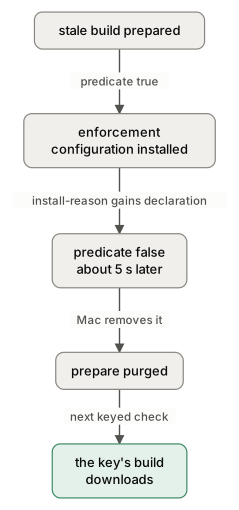
The engine re-checks the predicate on its own about five seconds after any software update status item it names changes, so there’s nothing to schedule. On my M4 Air the whole loop took about eight seconds.
The enforcement configuration’s payload (its type is com.apple.configuration.softwareupdate.enforcement.specific):
{
  "TargetOSVersion": "27.9",
  "TargetLocalDateTime": "2027-11-12T12:00:00"
}
There’s no 27.9, so if the configuration ever stays installed, it enforces nothing, and its arrival clears any pin (Apple answers "no match," and the fallback clears the key). It’s the same "no match" a stranded Mac finally gets about 90 days after its pinned version is replaced. Asking for a version that has never existed just gets it on day one. While it’s installed, System Settings says the Mac is up to date, which is why it should only stay for the few seconds this design gives it.
Without a TargetLocalDateTime the configuration is rejected as an invalid payload, and keep that deadline in the future: a past-due one makes the Mac rescan about every minute while it’s installed. If your MDM won’t take a version that doesn’t exist yet, use the current release instead. The cost is one "Managed Update" banner the user might see, and a pin left at that release, which is harmless because it points where you want the Mac to go anyway.
The activation predicate, all one line:
@status(device.operating-system.version) BEGINSWITH "27." AND @status(softwareupdate.install-state) == "prepared" AND @status(softwareupdate.pending-version)["os-version"] BEGINSWITH "27." AND NOT (@status(softwareupdate.pending-version)["build-version"] IN {"26B131"}) AND NOT ("declaration" IN @status(softwareupdate.install-reason)["reason"]) AND SUBQUERY(@status(management.declarations)["configurations"], $c, $c.identifier CONTAINS "<your enforcement configuration identifier>").@count == 0
Six clauses, and most of them are there because something went wrong without them.
device.operating-system.version BEGINSWITH "27."is required. A 26.x Mac preparing its 27 major has a pending version starting with "27." too, and without this clause I watched one purge a keyed major upgrade in 6 seconds.install-state == "prepared"is the anchor. Missing status values are nil, andNOT (x IN nil)is true, so every "not" clause needs a positive one next to it, or the predicate is true on a Mac with nothing prepared.pending-version["os-version"] BEGINSWITH "27."keeps it to the 27 line.NOT (... IN {"26B131"})is the allow-list: the builds you want to keep. Put every build your keys and declarations ask for in it. Adding a build touches nothing on any Mac; taking one out purges it everywhere it’s prepared. Use the universal build (here26B131, the one inRecommendedUpdates, not a hardware-specific one), and update the list when a release posts, at the same time as your keys.NOT ("declaration" IN ... install-reason["reason"])is what makes it cancel itself. It also keeps it off a Mac whose prepare came from a real declaration that arrived earlier.- The
SUBQUERYovermanagement.declarationscovers the one case the rest can’t see: this activation and a real enforcement declaration arriving in the same sync.
Without that guard, both configurations schedule within milliseconds, their scans collide, both find nothing, this one purges, and the real declaration is left active and valid with nothing scheduled until someone changes it. (That last part is a bug: a declaration whose scan failed on a collision should try again.) The guard only checks that a configuration whose identifier contains your real enforcement configuration’s identifier is present. Don’t add active == YES: a configuration arriving in the same sync is listed but not active yet, so that form lets it through. Use the configuration identifiers your MDM gives your real enforcement declarations (OR several inside the SUBQUERY), and make sure the pattern never matches this declaration’s own identifier, or it keeps itself off every Mac. Inactive leftover copies of a past declaration are listed too, so they’d keep this off those Macs; drop retired ones from the list.
The predicate engine is picky.
@status()takes a whole status item. Read fields with subscripts, like["build-version"]. A dotted path fails, and@status(x).build-versionis parsed as a subtraction.- String
<and>compare lexically ("26B99" < "26B131"is false), which is why this uses an allow-list instead of a version comparison. - Don’t use
FUNCTION(). It crashedremotemanagementdand left every declaration on the Mac inError.MissingStateuntil the next push. A predicate shouldn’t be able to crash the daemon, so that’s a bug, but until it’s fixed, stay away. - The
softwareupdate.*status items are supervised-only on macOS 14 and later.
After it fires, the configuration shows Error.ActivationFailed in your MDM, which is cosmetic. It stays quiet across restarts, and it fires again by itself if a stale prepare ever comes back. The one thing it doesn’t do is cancel an install that’s already armed for tonight. That’s next.
It armed, and then it didn’t, or it did anyway
Applies to every keyed Mac.
What you see. A Mac armed, and in the morning it’s still on the old version. Or the opposite: you removed the keys from a Mac, or purged its update, and it installed overnight anyway.
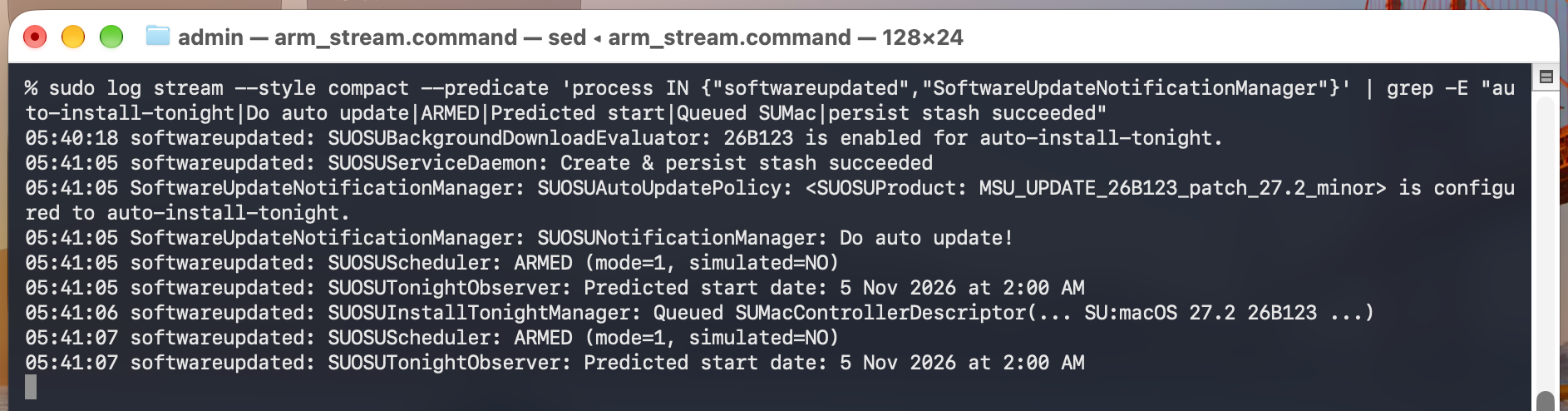
Why. Last time I said softwareupdate -l can cancel an armed install, and that it did on 2 of 16 scans. That’s still true, but now I know why it’s only sometimes, and what else does and doesn’t do it.
An arm is an activity softwareupdated submits to dasd (com.apple.SUOSUScheduler.tonight.install), plus the update it queued. Only two things really take it down: a scan whose result doesn’t include the queued update, and a restart.
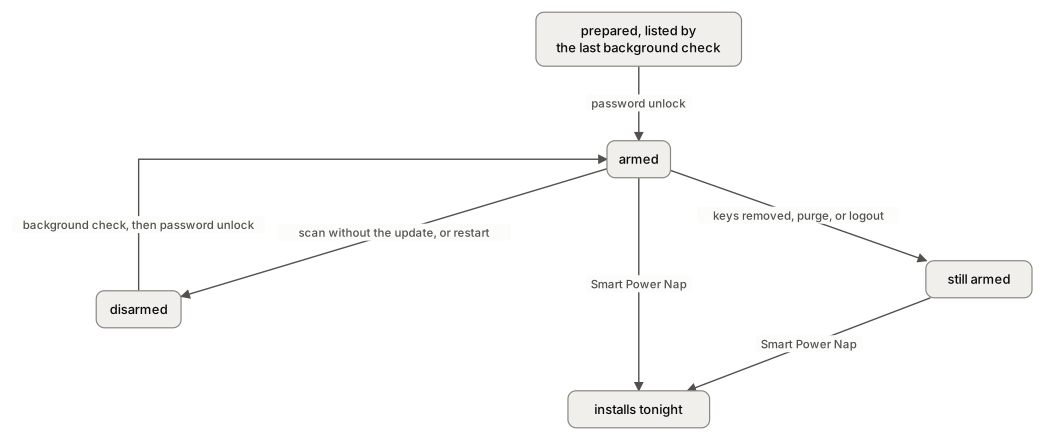
| Event | Disarms? | Installs at the next Smart Power Nap? |
|---|---|---|
| A scan whose result is missing the queued update | Yes | No |
| A restart | Yes | No |
A background check or softwareupdate -l that lists the update |
No | Yes |
| Check for Updates or Command+R in System Settings | No | Yes |
| Removing every key | No | Yes |
| Purging the update (declaration removal, the self-canceling declaration) | No | Yes |
| Logging out | No | Yes |
The softwareupdate -l case is a race. The CLI’s scan runs next to a legacy catalog scan, and when the catalog scan finishes it starts a second update scan. If the first one is still fetching the update’s documentation at that moment, the second loses control, comes back empty, and softwareupdated decides the available updates have changed, drops the queued update and disarms. Both take about 1.7 seconds, so whether a given run disarms comes down to network latency. A catalog download that timed out after the Mac sat idle did it once too. Any scan that comes back without the update counts; the CLI is just the one admins run.
Look at the bottom three rows. I armed a VM, removed every key and locked it. At Smart Power Nap it fired on schedule (Tonight activity fired!) and started downloading the update to install it, at ClientInitiated and past the ramp, with no keys at all. Removing the keys, purging the prepared update and logging out all leave the dasd activity in place, and with nothing prepared, the firing just downloads the update it queued. Meanwhile, the unlock that would normally arm a new prepare logs Don't proceed with auto update b/c already armed for later.
Getting re-armed after a real disarm takes two things, in order: a background check that lists the update again, then a password unlock. An unlock before that check logs What? No available updates? This shouldn't have been called and captures nothing, and so does every unlock after a boot until softwareupdated has run its first background check. From everything I’ve seen, a Touch ID unlock doesn’t capture the password, so on a Mac whose user lives on Touch ID, one disarm can cost days, often until Software Update makes them type the password.
And one thing that doesn’t stop any of it: a software update settings declaration with downloads and installs set to AlwaysOff. The key’s download and the arm both go ahead.
How to check.
grep -E 'SUOSUScheduler: (ARMED|DISARMED)|Removing queued descriptor|Tonight activity fired' /var/log/install.log | tail -5
Only SUOSUScheduler: DISARMED (with Removing queued descriptor) is a disarm. A logout logs an SUOSUAppQuitObserver ... disarming line too, but the arm survives it. And don’t date an arm from the files: /System/Volumes/Update/Update.plist changes at every stash, and FirstInstallTonightDateDictionary in the preferences only keeps the first arm.
What to do.
- Don’t run
softwareupdate -lon a schedule. ReadRecommendedUpdatesfrom the plist instead; Software Update’s own background check keeps it current. - If a Mac must not restart tonight, removing its keys isn’t enough. Restart it, which really disarms it, or keep it from looking away long enough for Smart Power Nap (a
caffeinateassertion does it). - After a purge on an armed Mac, expect an install that night unless you restart it.
The other big cause of lost nights is an app that won’t quit at the overnight logout, which deserves a post of its own.
A password prompt to schedule tonight’s update
Applies to keyed Macs without a declaration for the update.
What you see. At some random point in the day, a keyed Mac asks: "Enter your password to schedule the software update for tonight." If the user clicks Cancel, install.log says Clearing product keys to auto install, and AutoInstallProductKeys is empty.
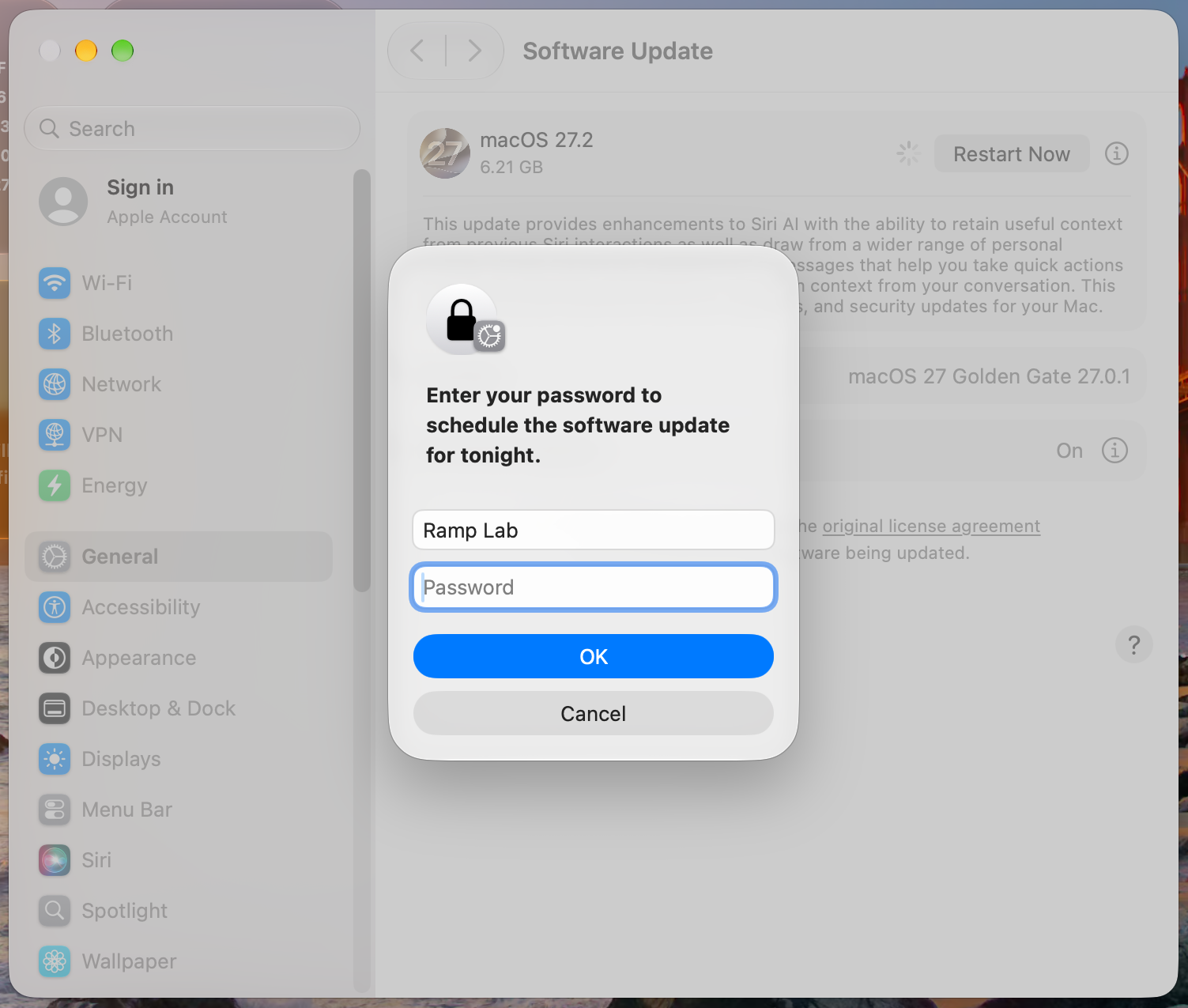
Greg Neagle ran into this on a macOS 26 (Tahoe) Mac and asked me about it: it had armed at 10:33, then put up this prompt around 5 p.m., with the same softwareupdated running all day. I’d never seen it, because every Mac I’d tested was either declared or freshly armed at an unlock.
Why. Every six hours, softwareupdated‘s periodic action asks the notification agent to arm whatever’s eligible. The agent checks that the Mac isn’t already armed, that the update is downloaded, that the user has a stash from an earlier unlock, and that the key makes the update eligible. If all of that passes, it queues the update for tonight, and that needs the user’s password. The password from the unlock was used once, at the original arm, and isn’t kept. So if that arm went away during the day (a scan that disarmed it, a night an app blocked, a new release, a purge), the re-queue has no password to use.
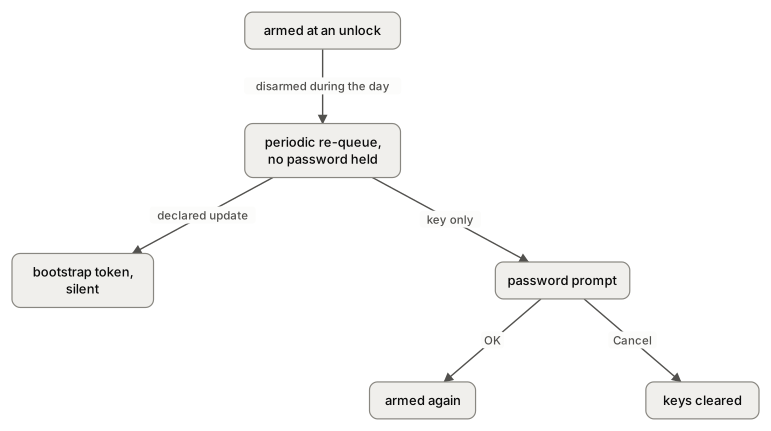
- For an update a DDM declaration manages, it logs
This is a DDM managed product, using BT for auto updateand quietly uses the bootstrap token. - For anything else, it logs
Prompting for LAContext since one isn't set alreadyand puts up the prompt.
It logs ARMED before it asks, so the arm looks fine in the log until the user answers. OK arms it properly. Cancel cancels the queued install, disarms, and clears the product keys. A password typed at the lock screen afterward is captured, but it doesn’t dismiss the prompt that’s already up, which is a small bug of its own.
How to check.
/usr/bin/log show --last 1d --predicate 'process == "SoftwareUpdateNotificationManager"' | grep -E 'Prompting for LAContext|using BT for auto update'
grep -E 'Clearing product keys|Remove all products from install later' /var/log/install.log | tail -5
What to do. Fewer disarms mean fewer prompts, so everything in the previous section helps here too. Beyond that:
- A declaration for the same update makes it silent, because the re-queue uses the bootstrap token instead of asking.
- Decide what a Cancel means to you. The script in the last post writes the keys back on its next run, so a user who cancels gets asked again later. That might be what you want (the update is still coming), or it might not (they said no). If you want to respect it, look for
Clearing product keys to auto installininstall.logand skip that build for that Mac.
Safari and Command Line Tools never update
Applies to Macs you’re keeping on macOS 26 or 15, and every Mac with Command Line Tools.
What you see. Macs on macOS 26 that never get Safari 27.2 unless someone clicks, and Command Line Tools that sit on an old version everywhere.
Why. Neither one is a macOS update in the sense the ramp and the key usually deal with. They’re products in Software Update’s older catalog, with product keys in the old NNN-NNNNN form (142-16640 is Safari 27.2 for macOS 26, 142-50405 is Command Line Tools for Xcode 27.2), and macOS downloads them with "Download new updates" on, then waits for a click forever. On macOS 27, Safari ships with the OS.
The key list takes these product keys too, but they can’t arm on their own: install-tonight only asks for a password while a macOS update is prepared, so with only Safari or CLT pending, a password unlock captures nothing. Next to a keyed, prepared macOS update, they ride along.
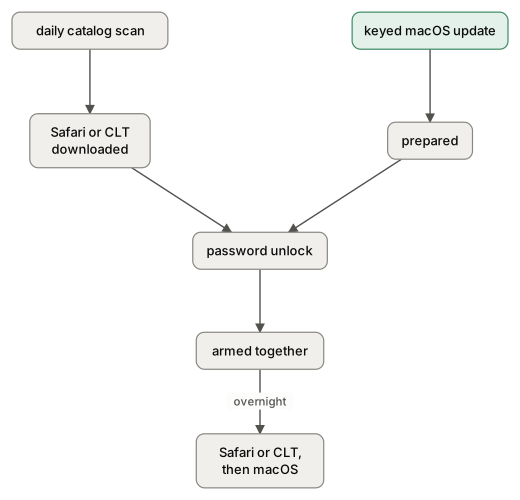
On a 27.2 Mac with CLT pending, the unlock arms both: Proceed with autoupdate with updates: ("142-50405", "MSU_UPDATE_26B123_patch_27.2_minor"). On a 26.6.2 Mac keyed for 26.7.2 and Safari, the night goes like this:
Set products to install later 142-16640
Tonight activity fired!
Logout finished with success=1
Installed "Safari" (27.2) / Success: Finished installing non-BaseSystem update : 142-16640
SUOSUPostLogoutInstallOperation: Applied MSU update
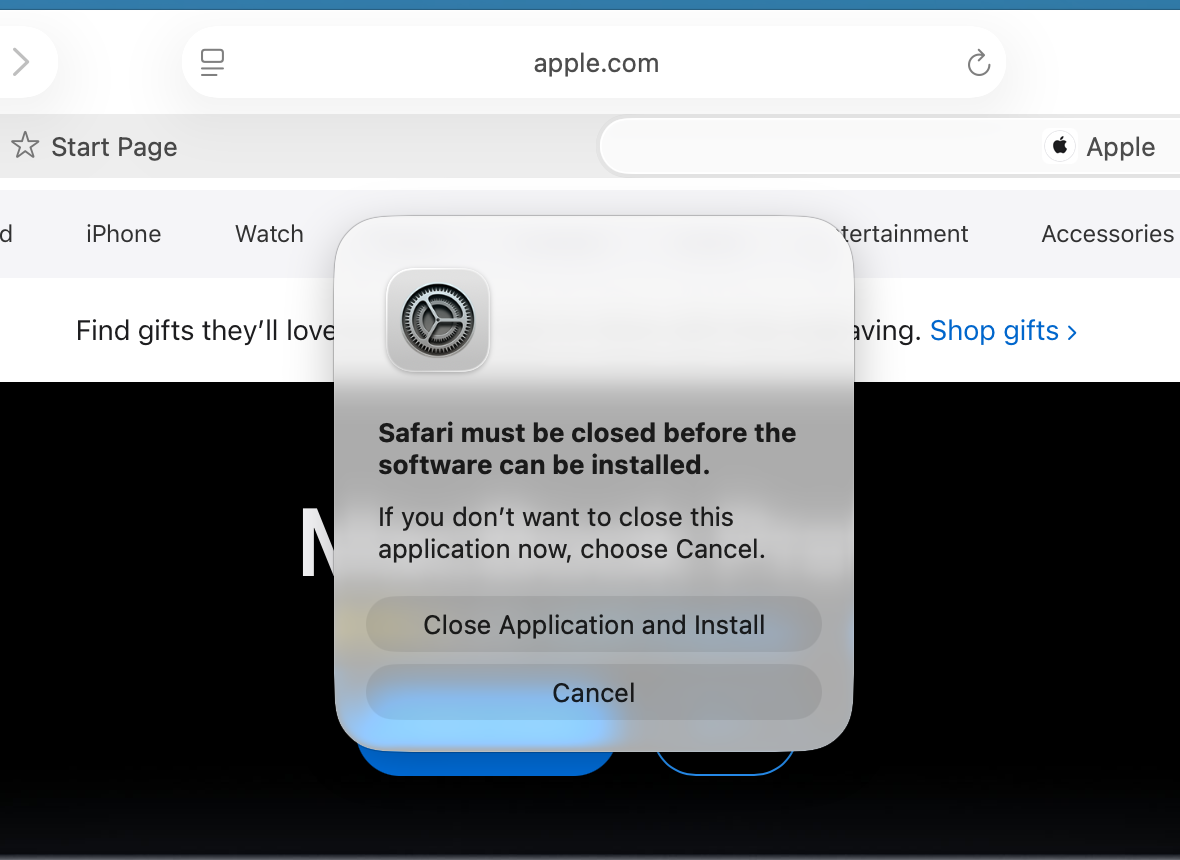
I tried the Command Line Tools trick on Safari first: install the staged package with installer and skip Software Update altogether. Safari refused. Safari for 26 writes the App cryptex on the Preboot volume, and only Software Update’s own install is allowed to write there. Installed the supported way, with softwareupdate --install, it’s silent if Safari isn’t running, but if Safari is open it stops and asks, even when root runs it.
| Safari for macOS 26 | Command Line Tools | |
|---|---|---|
| Downloaded | At a daily catalog scan, about a day after Apple posts it (the catalog marks it ramped, and the first scan that sees it hides it: 142-16640 is unseen ramped) |
At the first daily catalog scan after Apple posts it |
| Installs by itself | No | No |
| Rides along with a keyed macOS update | Yes, if it’s downloaded before the unlock that arms | Yes, same |
installer works |
No | Yes: the staged packages in /Library/Updates/<key>/ install as root in about a minute and a half |
| Needs a restart | No | No |
What to do. Greg’s autoupdatehelper adds the pending Safari and CLT keys for you. If you’re using the script from the last post, add any RecommendedUpdates entry with an NNN-NNNNN product key to the list next to the macOS key.
What ManagedProductMarketingVersion really does, and why you shouldn’t set it yourself
Applies to anyone tempted to write it.
Once you know a root-written string can pin a Mac to a version, it’s tempting to use it on purpose: to hold a Mac on what it’s running, or to send it to one particular release. I tried both. Some of it works, most of it doesn’t, and I’d leave the key to macOS.
What it is. A string in the root Software Update domain, /Library/Preferences/com.apple.SoftwareUpdate.plist. Normally only softwareupdated writes it, and only for an enforcement declaration: once the declaration’s scan finds the target, it writes the declaration’s version there, plus ManagedProductBuildVersion next to it. Deferrals, the software update settings declaration and Restrictions never write it. A configuration profile can’t set it either, because Software Update reads it from the any-user domain and never looks at the managed value. Root can write it, with or without MDM, and on an unmanaged Mac it pins exactly the same way.
What it does. Every macOS scan (the background check, softwareupdate, System Settings) sends it to Apple as RequestedProductVersion, and Apple answers with that version and nothing else. It only narrows the macOS update. On a supervised Mac it also drops the deferral from the request, though a deferral on the Mac still hides the pinned release from the user (not from the key, which downloads it anyway). ManagedProductBuildVersion is never sent to Apple and pins nothing on its own; it’s only used inside the declaration’s install to pick the declared build out of the scan result. Nothing ever clears that one either. It’s harmless, but delete both when you clean up.
When it clears itself, and when it doesn’t.
- Apple’s "no match" clears it. Whenever Apple answers a pinned scan with "no match" (a 422),
softwareupdateddeletes the key within a second or two. That happens for a version Apple doesn’t serve (27.9), and, because a real Mac sends its installed version along, for any version that isn’t newer than the one installed. Until that scan, a Mac pinned to its own version is offered nothing at all. If that scan is a Check for Updates, System Settings says "Unable to check for updates" once, then works. - Apple keeps serving superseded versions, for about 90 days. On November 13, a 27.0.1 Mac asking for 27.2 by name still got 27.2, days after 27.2.1 replaced it. Asking from a 26.6.2 Mac, Apple still answered for 26.6.1, which 26.6.2 had replaced 88 days earlier, and refused 26.6, replaced 99 days earlier. That lines up with the 90-day limit on deferrals, which only works if Apple keeps a release around for 90 days after it’s replaced. So a pin to a newer version stays until something deletes it or that window closes, and when it closes, the next scan gets "no match" and the Mac unpins itself. What’s prepared stays prepared, though.
- Rebooting doesn’t clear it.
softwareupdateddoes try at launch, but only when the pin is older than the running OS, and even then it’s refused (Not authorized to clear preference ManagedProductMarketingVersion), because it runs before the helper that writes preferences for it is ready. That’s a bug, if a harmless one: the only pins it would ever clear, the next scan clears anyway. - The removal clear never works (
Code=3, from the stuck section). Only the declaration’s own fallback, while it’s still active, does.
So, the things you might try:
- Freezing a Mac on the version it’s running doesn’t work. A pin to the installed version gets a "no match" at the next scan and clears. I wrote a LaunchDaemon that put the pin back the moment it disappeared, and it still lost:
softwareupdate --listruns two scans about a second apart, the second one already unpinned, and it got through five times out of five. A user pressing Retry in System Settings gets through too. To hold Macs back, use a deferral.
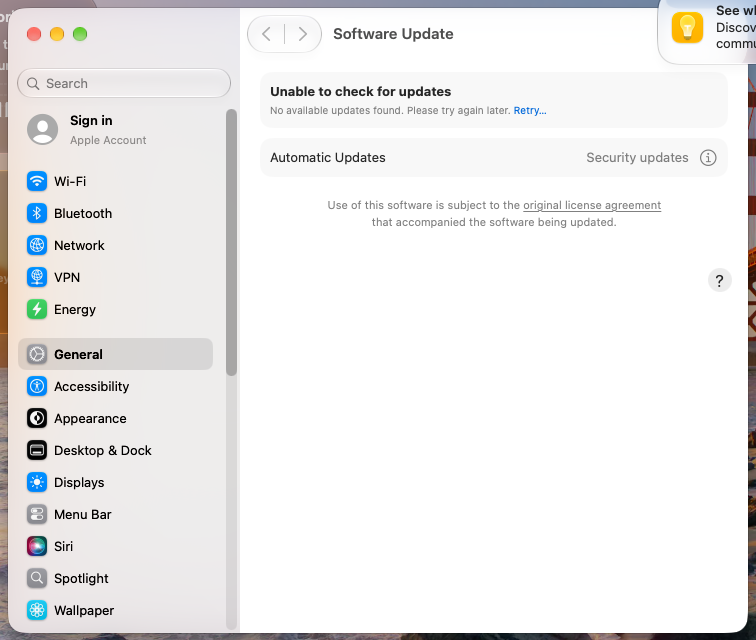
- Sending a Mac to a specific older release mostly works, and it’s a trap. A pin to 27.2 on a 27.0.1 Mac, with 27.2.1 out, makes every scan and System Settings offer 27.2 and only 27.2 (that’s the screenshot at the top of the stuck section). But keys for 27.2.1 match nothing while it’s there, so you need keys for 27.2 too. It stays until you delete it, and the day Apple stops serving 27.2, the pin clears itself and the Mac sees the newest release without anyone deciding that. A declaration that arrives later overwrites it, and that declaration’s removal leaves its own pin behind. It’s the stuck case, on purpose. If you need a Mac on one specific version, that’s what an enforcement declaration is for.
- Reinstalling the current macOS in place is the one use I’d keep.
AllowSameMSUVersionset to true together withManagedProductMarketingVersionset to the installed version makes Software Update offer the full image of the version you’re already on. Take the label fromsoftwareupdate --list(it’s the full image’s build, likemacOS 27.0.1-26A5434on a 26A434 Mac).softwareupdate --install "<label>" --restart --user <admin> --stdinpassreinstalled 27.0.1 over itself in about 10 minutes with the home folder and settings intact. It’s a repair for a Mac with a damaged system, without Recovery or an erase. Delete both keys afterward, or the Mac keeps offering the reinstall. - Leave the old
InstallLaterkeys alone.ManagedProductKeyswith theManagedDoItLater*counts andMDMUpdateIntervalstill drive the machinery behind the retired MDMScheduleOSUpdatecommand, and that machinery writes the pin too. It forces an install with a restart countdown, repeats on its interval, and blocks install-tonight while it’s set.
My advice: don’t write ManagedProductMarketingVersion yourself, and delete it wherever you find it on a Mac with no active enforcement declaration. To hold Macs back, use deferrals. To send them to a version, use a declaration. To get them there overnight, use the key.
Bugs, and what’s by design
A lot of this is just Software Update being Software Update: the key’s download being the lowest priority, a removal purging updates the declaration didn’t make, Cancel on the password prompt clearing the keys, a pin to an unserved version clearing itself. These are the ones I’d call bugs, roughly in order of how much trouble they cause.
| Bug | What it causes | To reproduce | Workaround |
|---|---|---|---|
The removal’s clear of ManagedProductMarketingVersion passes nil to a setter that only takes a string (Code=3) |
Every Mac that loses a declaration before installing its target stays pinned, for about three months, missing every security fix in between | Assign an enforcement declaration for a newer version, wait for the key to appear, remove the declaration, read the key | Root defaults delete |
| After a removal’s cancel, the logged-in user’s session asks for the download again without checking that the declaration still exists | A removal during a logged-in download finishes the removed declaration’s update anyway | Assign a declaration to a Mac with a user logged in, remove it while DDM status says downloading |
Remove at prepared, or with the user logged out |
| Automatic updates and an enforcement declaration don’t combine (from the last post) | Declared Macs never install overnight on their own, and wait for a click or the deadline | Declare an update with every automatic option on, unlock with a password, watch it never arm | The key |
| A real enforcement declaration whose scan collides with another one’s doesn’t retry | The declaration stays active and valid with nothing scheduled until it’s changed | Send the self-canceling declaration without its guard in the same sync as a real one | The SUBQUERY guard; change the stranded declaration |
FUNCTION() in a predicate crashes remotemanagementd |
Every declaration on the Mac sits in Error.MissingState until the next push |
Any activation predicate using FUNCTION() |
Don’t use it |
| On 26.x the unlock stash goes out at the leftover priority, fixed in 27 | macOS 26 Macs with a ClientInitiated prepare mostly fail to capture the password | Declare a 27 major on a 26.x Mac, unlock with a password, look for 7749 in install.log |
Get the Mac to 27 |
| A password typed at the lock screen doesn’t dismiss a pending schedule-tonight prompt | A prompt that’s no longer needed stays on screen | Let the prompt appear, lock, unlock with the password | Answer the prompt |
And one design gap that isn’t quite a bug: a superseded prepared update is never replaced or dropped by anything on the Mac, and once nothing pins the Mac to it, it never arms, so it sits there until something outside Software Update throws it away.
If you’re hitting any of these, a Feedback with a sysdiagnose from an affected Mac helps, and the steps above work with any MDM.
Most nights, tonight comes
The key still does what the last post said it would. On my own Macs, an update shows up, downloads past the ramp, arms the next time I type my password at the lock screen, and installs on a night I leave them alone. When it doesn’t, it’s almost always one of the three things from the top of this post: a pin nobody cleared, an update that outranks the key, or an arm that went away (or didn’t) when nobody expected it.
None of it is magic. It’s a lot of careful code that mostly works, and occasionally hands nil to a setter that only takes strings. Once you know where the pin lives, who outranks whom, and what really cancels tonight, a stuck Mac stops being a mystery and turns into a fix you can script.
Until Apple fixes the bugs: delete the pin, remove declarations at prepared, and let the declaration cancel itself. And if you find a case that isn’t in here, tell me. There’s probably another nil out there somewhere.
Reference
The races, in one place
Every one of these is two parts of macOS reaching for the same thing at the same moment. They all come from the same machinery: one update slot, handed to one client at a time, where the same client at the same or higher priority can take it mid-operation, and several parts of macOS (DDM, the user’s notification manager, softwareupdated‘s own scans, your scripts) work on that slot and the same preferences without coordinating.
| Race | What goes wrong | How to avoid it |
|---|---|---|
| Removal during a logged-in user’s download | The download survives without its declaration | Remove at prepared, or with the user logged out |
| A change, then a removal soon after | The change restarts every download, so the removal finds them mid-flight | Let downloads finish between the two |
| The self-canceling declaration in the same sync as a real enforcement declaration | Both scans collide, it purges, and the real one is left with nothing scheduled | The SUBQUERY guard in the predicate |
Two scans at once (the pair inside one softwareupdate -l, or a CLI run during a background check) |
The loser comes back empty, and the Mac disarms | Don’t run scans on a schedule; read RecommendedUpdates |
| Clearing the pin, then scanning right away | The first scan can still answer from the pinned view (No such update) |
Wait about ten seconds and retry once |
| A purge on an armed Mac | The update is gone but the arm isn’t; it fires that night anyway and installs what it queued | Restart after the purge if the Mac must not install tonight |
| A watcher re-writing a pin to the installed version | The pin clears inside the failed scan, and an immediate retry runs unpinned | Don’t; use deferrals |
How to check a Mac
The last post didn’t have any Perl, and every Mac still ships it, so this one makes up for that. That script was JavaScript through the Objective-C bridge; this one is Perl through the other bridge. use Foundation gives Perl the same Cocoa classes, so the script reads preferences with NSUserDefaults, decodes the state file with NSPropertyListSerialization, and never runs another command. It reads everything this post talks about (the keys, what’s on offer, the pin, the priority of what’s prepared, and the last time install.log saw each event that matters) and tells you what it means. It only reads, and it prints timestamps and labels, never whole log lines, since those include the Mac’s name. Run it with sudo perl tonight-check.pl.
#!/usr/bin/perl
# tonight-check.pl: why didn't this Mac update tonight? Read-only. Run it as root.
# It talks to macOS through Foundation, Apple's Perl-to-Objective-C bridge, and never runs another command.
use strict;
use warnings;
use Foundation;

die "Run this as root: sudo perl $0\n" if $> != 0;

# Three small helpers for Foundation objects: is it nil, its text, and the items of an array.
sub is_nil { my $o = shift; return !(defined $o && $$o) }
sub text   { my $o = shift; return is_nil($o) ? undef : $o->description->UTF8String }
sub items  { my $a = shift; return is_nil($a) ? () : map { $a->objectAtIndex_($_) } 0 .. $a->count - 1 }

# Software Update's preferences, read the same way softwareupdated reads them.
my $prefs = NSUserDefaults->alloc->initWithSuiteName_('com.apple.SoftwareUpdate');

# 1. What's keyed, and what the last background check offered.
my @keys    = map { text($_) } items($prefs->arrayForKey_('AutoInstallProductKeys'));
my @offered = map { text($_->objectForKey_('Product Key')) } items($prefs->arrayForKey_('RecommendedUpdates'));
my %keyed   = map { $_ => 1 } @keys;
my @unkeyed = grep { !$keyed{$_} } @offered;

# 2. The pin.
my $pin = text($prefs->stringForKey_('ManagedProductMarketingVersion')) // '';

# 3. The priority of whatever is prepared: 200 is the key, 300 is anything else.
# It's saved inside SUMacController's state file as a small keyed archive.
sub priority_in {
    my $file  = shift;
    my $state = NSDictionary->dictionaryWithContentsOfFile_($file);
    return undef if is_nil($state);
    my $fields = $state->objectForKey_('SUCorePersistedStatePolicySecureCodedObjectsFields');
    return undef if is_nil($fields);
    my $blob = $fields->objectForKey_('PersistedAccessControlContext');
    return undef if is_nil($blob);
    my $archive = NSPropertyListSerialization->propertyListWithData_options_format_error_($blob, 0, undef, undef);
    return undef if is_nil($archive);
    for my $object (items($archive->objectForKey_('$objects'))) {
        next unless $object->isKindOfClass_(NSDictionary->class);
        my $priority = text($object->objectForKey_('SUMacControllerAccessControlContextPriority'));
        return $priority if defined $priority;
    }
    return undef;
}
my $priority = 'nothing prepared';
for my $file (glob('/var/folders/zz/*/C/softwareupdated/SUMacController/SoftwareUpdateMacController.state'),    # macOS 27
              glob('/var/folders/zz/*/C/SUMacController/SoftwareUpdateMacController.state')) {                   # macOS 26
    $priority = priority_in($file) // $priority;
}

# 4. The last time install.log saw each event that matters.
my %events = (
    'armed'         => qr/SUOSUScheduler: ARMED/,
    'disarmed'      => qr/SUOSUScheduler: DISARMED/,
    'fired'         => qr/Tonight activity fired/,
    'key refused'   => qr/Code=7507/,
    'stale prepare' => qr/not downloaded yet/,
    'user canceled' => qr/Clearing product keys/,
);
my %last;
open my $log, '<', '/var/log/install.log' or die "Can't read install.log: $!\n";
while (my $line = <$log>) {
    for my $event (keys %events) {
        $last{$event} = substr($line, 0, 19) if $line =~ $events{$event};
    }
}
close $log;

# Did one event happen more recently than another (or the other never)?
sub after {
    my ($newer, $older) = @_;
    return $last{$newer} && (!$last{$older} || $last{$newer} gt $last{$older});
}

# Firing an arm also logs DISARMED, so a firing since the last arm explains both.
my $fired = $last{fired} && $last{armed} && $last{fired} ge $last{armed};

print "Keyed:    ", (@keys    ? join(', ', @keys)    : 'nothing'), "\n";
print "Offered:  ", (@offered ? join(', ', @offered) : 'nothing'), "\n";
print "Pin:      ", ($pin ne '' ? $pin : 'none'), "\n";
print "Prepared: $priority\n";
print "Last seen in install.log:\n";
printf "  %-14s %s\n", $_, $last{$_} for sort { $last{$a} cmp $last{$b} } keys %last;

# 5. What it means.
my @notes;
push @notes, "Nothing is keyed, so the key isn't doing anything here." unless @keys;
push @notes, "Offered but not keyed: @unkeyed. Add those keys." if @keys && @unkeyed && $pin eq '';
push @notes, "Pinned to $pin. If there's no active declaration, delete it: sudo defaults delete /Library/Preferences/com.apple.SoftwareUpdate ManagedProductMarketingVersion" if $pin ne '';
push @notes, "Prepared at 300 while pinned. Once the pin is gone, expect the key to be refused until that update is purged." if $priority eq '300' && $pin ne '';
push @notes, "The prepared update is at 300, and the key's download has been refused (7507) since the last arm. If it isn't the build you want, it has to be purged." if $priority eq '300' && after('key refused', 'armed');
push @notes, "The prepared update is older than what's on offer, so it won't arm." if after('stale prepare', 'armed');
push @notes, "The last arm fired at $last{fired}. If the Mac is still on the old version, something stopped the install that night, usually an app that wouldn't quit." if $fired;
push @notes, "Disarmed since the last arm. It needs a background check, then a password unlock." if after('disarmed', 'armed') && !$fired;
push @notes, "A user canceled the password prompt, which cleared the keys." if after('user canceled', 'armed');
push @notes, "Armed for tonight." if after('armed', 'disarmed') && !$fired;
push @notes, "Nothing obviously wrong." unless @notes;
print "\n", map { "- $_\n" } @notes;
Here’s what it says about a 27.0.1 Mac having a bad week: it lost the removal race on 27.2, and someone has already cleared its pin.
Keyed:    MSU_UPDATE_26B131_patch_27.2.1_minor
Offered:  MSU_UPDATE_26B131_patch_27.2.1_minor
Pin:      none
Prepared: 300
Last seen in install.log:
  stale prepare  2026-11-12 08:31:55
  key refused    2026-11-12 14:02:15

- The prepared update is at 300, and the key's download has been refused (7507) since the last arm. If it isn't the build you want, it has to be purged.
- The prepared update is older than what's on offer, so it won't arm.
It’s a starting point, not a diagnosis. The timestamps come from install.log, which rotates, and the script can’t see what DDM thinks, so pair it with the Mac’s DDM status from your MDM. It also won’t tell you the update is coming tonight. Only tomorrow morning can do that.
Thanks to Greg Neagle for the password prompt report and for autoupdatehelper. Everything here was tested on Apple silicon in November 2026, on macOS 27.0.1, 27.2 and 26.6.2, in VMs and on real hardware, unmanaged and enrolled in a lab MDM built from NanoMDM, KMFDDM and nanoca.
