

TL;DR
- A lot of Macs on automatic updates never actually update automatically. Apple holds every macOS update back from automatic updates for a while (the ramp), and it now ships releases fast enough that a new one often replaces the last before its ramp opens. This summer 26.6 (July 27), 26.6.1 (August 6, for an actively exploited bug) and 26.6.2 (August 17) each replaced the last while it was still held back, so Macs left to update themselves couldn’t download any of them until late August. 27.2 never got out of the ramp before 27.2.1 replaced it on November 9.
- DDM gets you most of the way. A software update declaration gets supervised Macs to downloaded and prepared within minutes, but it doesn’t combine with automatic updates, so in practice every declared update waits for the user to click or for the deadline to force it.
- One root-written preference fixes both.
AutoInstallProductKeysin/Library/Preferences/com.apple.SoftwareUpdate.plist, the list the "Update Tonight" button writes, gets the update downloaded past the ramp and installed overnight, with no click and no forced restart in the middle of anyone’s day. It needs "Download new updates" on and one password unlock, works with or without DDM, and handles major upgrades from 26 to 27, which Apple’s automatic updates don’t. - Keep DDM or Nudge, but push the first reminder back a couple of days. A lot of Macs will be done before anyone needs a reminder.
It’s been a while. Somehow, since my last post, I’ve ended up with more Xserves, not fewer, and the 2013 Mac Pro I wrote about running ESXi on now spends its days on WireGuard fun.
I found a preference key that, as far as I can tell, nobody has written about. It fixes the thing that has bothered me most about keeping Macs current lately, Macs sitting on a downloaded update for days and all the reminders it takes to get it installed, and it turns out to fix it for my own Macs at home as much as for a fleet.
Updating Macs has become a UX problem
Back in the Intel days, patching Macs was mostly a scheduling problem, and we owned the schedule. You ran your own Software Update Server (or reposado), pointed clients at your catalog, approved updates when you were ready, and something like Munki ran softwareupdate at logout or overnight. Updates were small, they installed when you said so, and Apple had no say in when a given Mac got one.
Most of that is gone, largely for good reasons. Custom catalogs went away years ago. On Apple silicon, installing an OS update takes a volume owner’s credentials or a bootstrap token, so a root script can’t just run softwareupdate and walk away. Updates are big now: 27.2 came to about 18 GB in my tests, counting the on-device assets that get staged with the 6 GB patch. And between you and the update there’s now Apple’s staged rollout, which decides when each Mac gets it for automatic install.
What’s left is mostly a user experience problem, and it shows up everywhere:
- On your own Mac, "automatic updates" can mean a couple of weeks of nothing while Apple’s ramp holds the update back, so you end up checking by hand anyway. Leave it, and you get a notification to dismiss, a "Restart Now" button that wants your password, and, once the update has been sitting there for a week, Touch ID asking for your password every day.
- At work, the options all lean on reminders and deadlines. DDM’s own enforcement notifications come hourly in the last day, every 30 minutes in the last hour and every 10 minutes in the last half hour. Then the deadline restarts the Mac at whatever time you picked, and per Apple’s own guide it force quits every open app, "regardless of whether any documents are open and unsaved." A longer deadline gets you a slow trickle of people clicking and the same crowd at the end. Tools like Nudge work through reminders and deadlines too, because that’s the lever the platform gives them.
- Apple makes the same tradeoffs: the ramp, and daily password prompts once an update has waited a week.
Apple, admins and tool makers are all working with the levers the platform has, and users pay for it in time: the updates themselves, plus every reminder and countdown along the way.
Some napkin math. In the last 12 months, a Mac that stayed current installed 16 macOS updates, whether it stayed on 26 (26.2 through 26.7.3) or moved to 27 (26.2 through 26.6.2, then 27.0 through 27.2.1). Say each one done by hand costs 20 minutes between clicking Restart, waiting out the install and getting your apps back. That’s more than five hours a year per Mac. Across 1,000 Macs it’s over 5,000 hours, more than two and a half people’s working year, spent watching a progress bar.
And that’s before the time spent on reminders, or a deadline that lands in the middle of someone’s work, sometimes with the download still to go. An install that happens overnight gives all of that time back.
This key lets you skip the ramp to get updates out faster and make the experience better, because the Mac installs overnight, the way you’d want automatic updates to work in the first place.
What slows updates down
The ramp. When Apple ships a macOS update, your Macs don’t all get it for automatic install on day one. They get it when Apple decides they do. Apple’s deployment guide mentions it briefly, and the closest thing to an official explanation is an email from Craig Federighi to an iPhone user, reported by MacRumors: devices with automatic updates on get updates "1-4 weeks later (after we’ve received feedback on the update)." That was about iOS, but Macs behave the same way.
Here’s roughly when Apple’s server let Macs on automatic updates have each release this year, and when the next release replaced it:
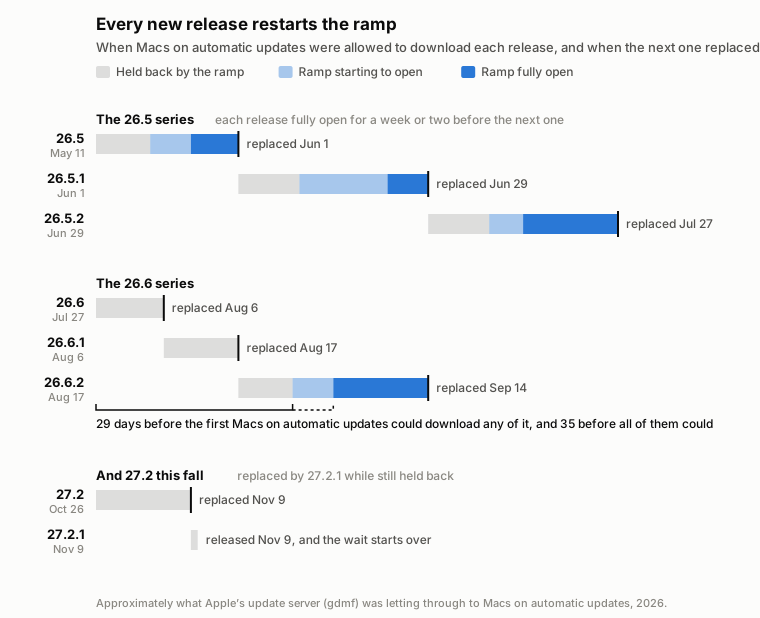
Every release starts out held back (Apple’s logs call that "ramped"). After about a week, Apple starts letting a share of Macs through (which ones depends on an ID each Mac sends with its request), and about a week after that the ramp is all the way open, though 26.5.1 took more than three weeks. The 26.5 series was okay: each release was fully open for a week or two before the next one replaced it, so a Mac on automatic updates got each one a couple of weeks late, but it got them.
The 26.6 series wasn’t. 26.6 shipped on July 27 with 170 CVE fixes, 26.6.1 followed on August 6 to fix a bug that was being actively exploited, and 26.6.2 came on August 17 with 34 more. Each one replaced the last while it was still held back, and each one started its own ramp. The first Macs on automatic updates weren’t allowed any of it until about August 25, 29 days after 26.6 shipped, and the last ones not until about August 31. After that they still had to download it, get a password unlock and sit locked for a night, so a Mac on automatic updates was looking at about four weeks between Apple fixing an actively exploited bug and that fix being installed. The full story is the next post in this series.
And 27.2 is the same pattern all over again. 27.2 shipped on October 26. I’ve been watching what Apple’s update server (gdmf.apple.com) offers Macs on automatic updates, and 27.2 stayed ramped for every device ID I tried, from every starting build I tested, until 27.2.1 replaced it on November 9. As far as I can tell, a Mac relying on automatic updates never got 27.2 at all, and 27.2.1 started the wait over.
DDM’s missing last step. A DDM software update declaration is good at getting the bits onto the Mac: it skips the ramp for the download, and within minutes the update is downloaded and prepared. Then it sits there. A declared, prepared update doesn’t install overnight on its own. It waits for the user to click or for the deadline. The reality is that a huge chunk of users never click. They’re busy, the notification is easy to dismiss, and "later" seems fine every time, so they end up at the deadline.
And a declaration doesn’t combine with automatic updates the way you’d expect. Apple’s guide, Install and enforce software updates for Apple devices, puts "Install software updates automatically" and "Enforce software updates" on the same page, so you’d reasonably think they stack: automatic installs when the Mac can, the deadline for the rest. On macOS they don’t. The declaration gets the update past the ramp for the download, but not past the server’s flag for the overnight install. A declared Mac with every automatic option on still logs this at the next password unlock, then waits for the user or the deadline:
MSU_UPDATE_26B123_patch_27.2_minor is not eligible for auto update because it's disabled server-side for this product.
For 27.2, that flag never came on. It’d be great if the page called that out, since the two sections sit right next to each other.
The key
What got me curious was that users could get an overnight install. When someone clicked "Update Tonight" in System Settings or "Install Tonight" in the notification, their declared, ramped Mac armed and installed overnight just fine. So I clicked it in a VM and diffed /Library/Preferences/com.apple.SoftwareUpdate.plist. One of the new keys was this:
AutoInstallProductKeys = (
    "MSU_UPDATE_26B123_patch_27.2_minor"
);
That string is the update’s product key: MSU_UPDATE_<build>_<patch|full>_<version>_<minor|major>. Here 26B123 is 27.2’s build, patch means the delta from the version you’re on (full is the whole image), and minor or major is what kind of update macOS considers it.
Disassembling what reads that list made the rest clear. Software Update checks it in two places, and both times it checks it before the server’s verdict:
| Gate | Without the key | With the key |
|---|---|---|
| Background download (the ramp) | "is ramped, not downloadable at this time" | "is enabled for auto-install-tonight", then "Selected product to download" |
Overnight install (Apple’s AutoUpdate flag) |
"is not eligible for auto update because it’s disabled server-side" | "is configured to auto-install-tonight", then "Do auto update!" and ARMED |
Software Update reads the list from /Library/Preferences with usingManaged:NO, so a configuration profile can’t set it, but root can write it directly.
It doesn’t matter whether the update is already on the Mac. With nothing downloaded, the next background check (every 6 hours or so) fetches and prepares it past the ramp, meaning it’s downloaded and staged to apply at a restart. With it already prepared, by DDM or the user, that part’s done. Either way, the next password unlock gives softwareupdated the password it needs to restart unattended, and it arms: the install is scheduled for tonight.
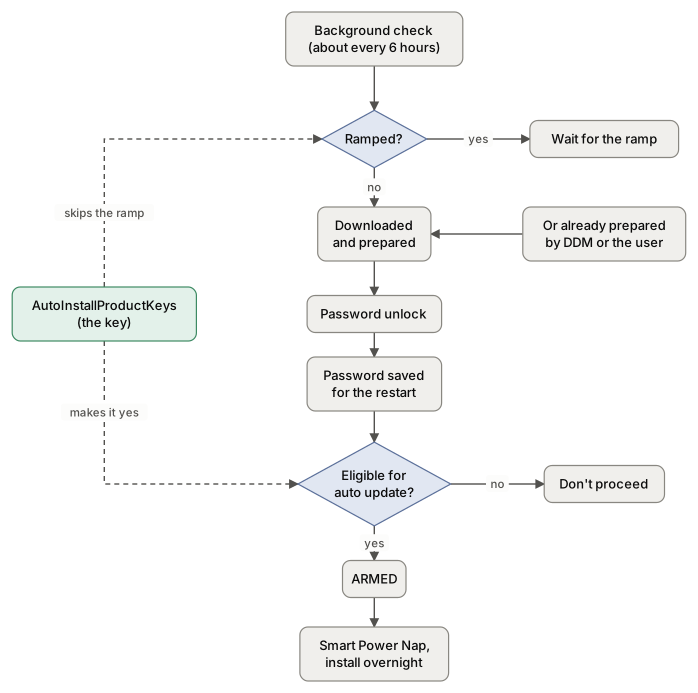
The install itself fires during a Smart Power Nap (despite the name, that’s about the user being away, not the Mac sleeping), once the Mac has been locked with the display off for about two hours, usually after 1 a.m. (Post 3 covers how macOS decides.)
Watching it work
It worked in every setup I tried:
- From nothing. A fresh, unmanaged 27.0.1 VM with every automatic option on, 27.2 ramped and nothing downloaded: one
defaults write, and the next background check logged26B123 is enabled for auto-install-tonightand started the download. Sixteen minutes later it was prepared, and at the next password unlock it loggedis configured to auto-install-tonight,Do auto update!andARMED. - On real hardware, always-on Macs included. A desktop that never sleeps, with a 27.2 enforcement declaration and 27.2 prepared for a week, installed it the first night after I wrote the key and typed the password once, and came back up with the user logged back in at the console.
- With FileVault on. A FileVault-on VM restarted with nobody typing anything: loginwindow logged the user back in with the saved password and put the lock screen back up. Real laptops with FileVault on do the same.
- Apps come back. In another VM, a TextEdit window with unsaved changes came back after the restart, still marked Edited. Software Update starts this logout with "restore apps" on, whatever the user’s own setting says.
- Under MDM. A VM enrolled in MDM, with a 27.2 enforcement declaration and the key, prepared the update in about 20 minutes, armed at the first password unlock, and installed overnight.
What the user sees is stock macOS, and not much of it. When it arms, a notification:
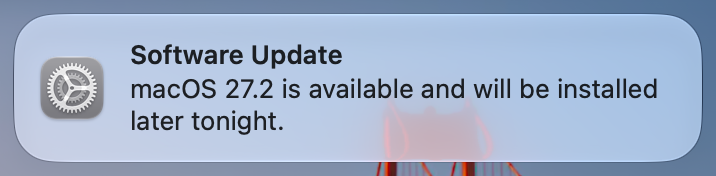
Software Update says it’s scheduled:
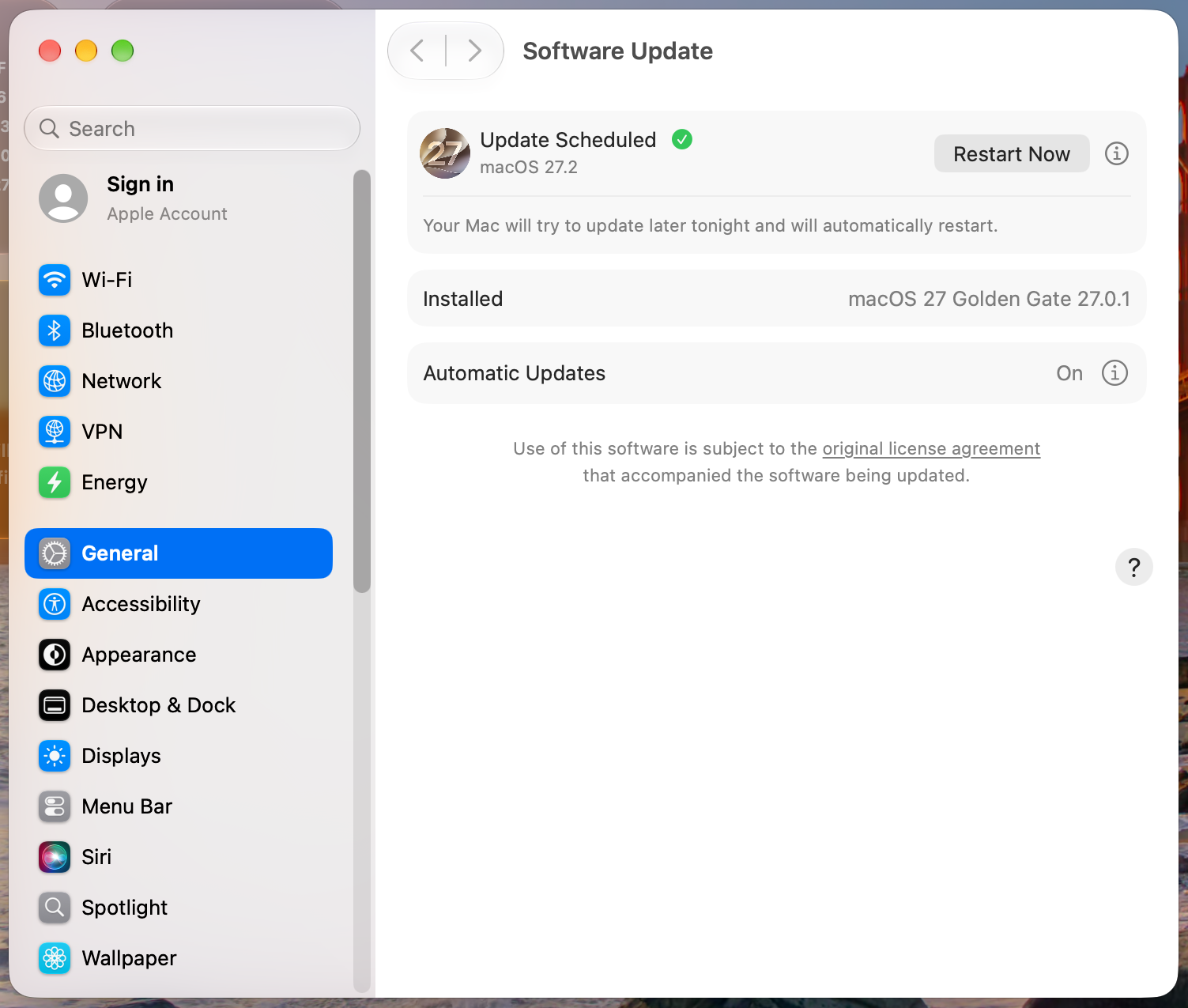
And then nothing until the morning, when the Mac is on the new version with their apps back where they left them. No click, no countdown, and once it’s installed, the daily Touch ID password prompts stop too.
And for anyone whose night doesn’t work out (a Mac that wasn’t left on, an app that wouldn’t quit), "Restart Now" in Software Update works the way it always has. The update is already prepared, so it’s just the restart and the install.
Major upgrades, too
Apple’s automatic install settings are documented as "Automatic software updates (not upgrades)", so until now a Mac on 26.x going to 27 had two options: the user clicks, or a deadline forces it.
On macOS 26, the key changes that. From 26.x, 27 is offered as a major product, so the key ends in _major:
MSU_UPDATE_26B131_patch_27.2.1_major
macOS 26 only refuses majors that need the full Install macOS app. A major that comes through Software Update goes through the same check as a minor. I’ve watched it all the way through: on a 26.6.2 VM built from Apple’s IPSW, the major key got 27.2 downloaded past the ramp (with 26.7.2 still ramped right next to it), it armed at a password unlock just after midnight, installed a little after 2 a.m., and booted on 27.2 with the user session back and locked.
A few things to know:
- Minor or major, pick one. If a 26.x Mac has both a 26.7.x key and a 27.x key, the major wins, whichever was written first, and only one update is ever prepared. To keep a Mac on 26 for now, key only the minor (also tested, 26.6.2 to 26.7.2 overnight). Don’t add a major key to a Mac that’s already armed for the minor: the major gets prepared, then the old arm fires for the minor, and that night nothing installs.
- Disk space. A 26 to 27 upgrade wanted about 23 GB free.
- macOS 15 only gets half. The key exists from macOS 15, and gets a major upgrade selected for download past the ramp there, but going by the code, 15 refuses to arm any major upgrade for install-tonight, so the user or a deadline still installs it. On macOS 12, 13 and 14 the key doesn’t exist at all.
Where it fits with what you already do
You probably already have something in place to get Macs updated. The key doesn’t replace it. It fills the gap every one of these leaves, which is the install itself:
| If you rely on | You get | What’s still missing | Add the key |
|---|---|---|---|
| Automatic updates alone | Overnight installs, eventually | Weeks of ramp, restarted by every new release | Downloaded within hours of release, installed the next night it can |
| DDM declarations | Download and prepare within minutes, and a deadline | Any install before the user clicks or the deadline hits | Installed overnight, the deadline catches the rest |
| Nudge or similar | Reminders that escalate, and a deadline of their own | The download and prepare (Nudge doesn’t do either, so it’s still ramped unless the user starts it), and the install still takes a click | Usually installed before the first reminder |
With DDM, the deadline is for stragglers. DDM gets the update downloaded and prepared, and the key gets it installed overnight. Give your users a week, and a good share of them won’t need to do anything; the rest hit a blocked night or two (see below) before it goes through. The overnight installs can start the first night after the update is prepared, so a lot of that is done long before DDM’s notifications get frequent in the last day. The ones left at the deadline are the real stragglers: the Mac closed in a bag all week, or the one with a terminal that wouldn’t quit any night. The deadline is there as the backstop, and it shouldn’t be a punishment.
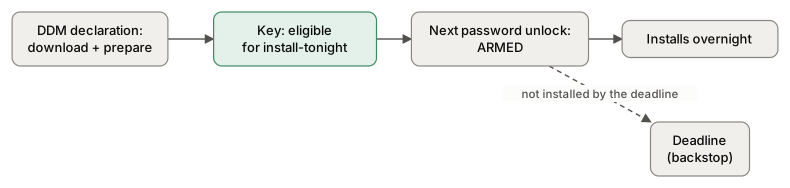
It works for the urgent ones too. Say Apple fixes an actively exploited bug and you need it installed within 48 hours. Write the key and set a 48-hour deadline. Macs download and prepare it within hours, most of the ones left on that night install it, and the deadline catches the rest. No need to give people weeks to make it painless. Blocking apps are the main thing left in the way, and the helper in a later post should handle most of those.
With Nudge, you don’t need DDM to get the update downloaded. Nudge reminds the user and sends them to Software Update, but it doesn’t download or prepare anything. The key does that part, past the ramp, the same way a declaration would. The same goes if you run Nudge alongside DDM, the way a lot of places do now, with a far-out declaration as the backstop and the real date in Nudge. Either way, hold Nudge’s first reminder a couple of days and a lot of Macs will have installed overnight before it says anything. The ones it does remind already have the update prepared, so "Restart Now" is a quick restart instead of a multi-gigabyte download first, and Nudge is left with just the Macs that need a person (the one never left on at night, the one with an app that won’t quit).
It doesn’t need a bootstrap token, either. MDM-initiated installs, a DDM deadline included, get the volume owner credentials Apple silicon needs from the bootstrap token, so if bootstrap tokens ever give you trouble, those installs can fail. Install-tonight never touches it: at the user’s next password unlock, loginwindow hands the password to softwareupdated, which saves it for the restart, and the person logging in to their own Mac is normally a volume owner. So a Mac whose deadline install keeps failing on its bootstrap token can still install overnight.
How to use it
For 27.2.1 (build 26B131), write both the patch and full forms, since a Mac takes the full image when there’s no patch from its build. The key doesn’t include the starting build, so one pair covers every Mac going to that release, and keys that don’t match anything are ignored:
sudo defaults write /Library/Preferences/com.apple.SoftwareUpdate AutoInstallProductKeys -array-add \
  MSU_UPDATE_26B131_patch_27.2.1_minor MSU_UPDATE_26B131_full_27.2.1_minor
On a 26.x Mac, the _major pair (MSU_UPDATE_26B131_patch_27.2.1_major and ..._full_27.2.1_major) means "upgrade to 27," so only add it to Macs you want upgraded. And -array-add appends, so if you run it on a schedule you’ll pile up duplicates and old keys; the script below replaces the list instead.
The easiest place to get the key is the Mac itself: after an update check, RecommendedUpdates in the same plist lists the exact product key it’s being offered, ramped or not. If you take the build from SOFA instead, use the one under InstallationApps > LatestUMA. The headline Latest build can be a hardware-specific one that most Macs never see (for 27.2.1 it’s 26B8132, while most Macs get 26B131), and a key with the wrong build matches nothing.
Then trigger a background check, so you don’t wait up to six hours for the next one:
sudo notifyutil -p com.apple.SoftwareUpdate.TriggerBackgroundCheck
That’s safe to run whenever you like: mid-download, with the update already prepared, even while it’s armed. What’s not safe is softwareupdate -l; more on that below.
After that, the Mac needs "Download new updates" on (with it off, the download fails every time; "Install macOS updates" doesn’t have to be on), one password unlock once the update is prepared, and a night when it’s left on and locked. Touch ID unlocks don’t count, because they never hand loginwindow the password. Software Update takes care of that part on its own: while an update is prepared, it makes Touch ID users type their password every couple of days, and every day once the update is a week old.
- When you write it mostly doesn’t matter.
softwareupdateddoes the work: the download, the prepare, saving the password at an unlock, arming and installing. Before or after the download, before or after an unlock, the worst case is a lost night. - Background checks can run more often. They run about every six hours.
BackgroundActivityIntervalOverridein the same plist, in seconds, changes that:sudo defaults write /Library/Preferences/com.apple.SoftwareUpdate BackgroundActivityIntervalOverride -int 3600makes them hourly. Like the key, it’s read from the plain plist, so a profile won’t set it, and it takes effect at the next restart. Every check is a full round trip to Apple’s servers, so I wouldn’t go below an hour. - Command Line Tools can go along for the ride. The CLT update isn’t ramped, and macOS downloads it to
/Library/Updates/but never installs it by itself. Add its product key (it’s inRecommendedUpdatestoo,142-50405for the 27.2 CLT) next to the macOS key before the unlock that arms macOS, and the overnight install puts in the CLT first and then macOS, in the same restart.
A script that keeps up with releases
A key names one specific release, so something has to write the new one when Apple ships. The Mac already knows what it’s being offered: every update check caches Apple’s answer on disk, and RecommendedUpdates names the exact product key. So this script reads those and writes the key through the same SUSharedPrefs class softwareupdated reads it with. No network, no feed, nothing to keep in sync.
The catch is that the Mac has to have checked first. On release day it doesn’t know about the new release until its next background check sees it, so that’s when the script can write the key. It then triggers another check right away, so the download starts within minutes instead of waiting for the check after that. To shorten the first wait, make the checks run more often, as above.
This is macOS management in 2026, so of course it was going to be Perl. The Perl that ships with macOS can do nearly all of this through its Objective-C bridge, but triggering the background check means calling notify_post, which is plain C, and Perl’s bridge can’t call that. I wasn’t going to shell out to notifyutil for one line, so it’s JavaScript for Automation instead, which can bind a C function directly. It shells out for nothing:
#!/usr/bin/osascript -l JavaScript
/*
Queue whatever macOS update this Mac is being offered for install-tonight, so it downloads past Apple's ramp and installs overnight.

Runs as root and works entirely from what the Mac already knows: no network, no feed, no shelling out. ALLOW_MAJOR=1 queues the next major version instead of the minor when there is one (macOS 26 or later only). DRY_RUN=1 prints instead of writing.
*/
ObjC.import('Foundation')
// notify_post(3) is plain C, so bind it directly instead of shelling out to notifyutil.
ObjC.bindFunction('notify_post', ['int', ['char *']])

const newer = (a, b) => {
  const x = a.split('.').map(Number), y = b.split('.').map(Number)
  for (let i = 0; i < 3; i++) if ((x[i] || 0) !== (y[i] || 0)) return (x[i] || 0) > (y[i] || 0)
  return false
}

function run() {
  const env = ObjC.deepUnwrap($.NSProcessInfo.processInfo.environment)
  const sysver = ObjC.deepUnwrap($.NSDictionary.dictionaryWithContentsOfFile('/System/Library/CoreServices/SystemVersion.plist'))
  const version = sysver.ProductVersion, build = sysver.ProductBuildVersion, major = parseInt(version)
  if (major < 15) return `macOS ${version} has no AutoInstallProductKeys, nothing to do`

  $.NSBundle.bundleWithPath('/System/Library/PrivateFrameworks/SoftwareUpdate.framework').load
  const prefs = $.NSClassFromString('SUSharedPrefs').sharedPrefManager
  const recommended = ObjC.deepUnwrap(prefs.objectForAnyUserPreferenceUsingManaged('RecommendedUpdates', false)) || []

  // Apple's answer to the last update check, cached on disk: one asset per update, a patch from this build or the full image.
  const catalog = ObjC.deepUnwrap($.NSDictionary.dictionaryWithContentsOfFile('/System/Library/AssetsV2/com_apple_MobileAsset_MacSoftwareUpdate/com_apple_MobileAsset_MacSoftwareUpdate.xml')) || {}
  const assets = (catalog.Assets || []).filter(a => a.OSVersion && newer(a.OSVersion, version) && (!a.PrerequisiteBuild || a.PrerequisiteBuild === build))

  // Minor or major, never both: a 26.x Mac given both keys only ever prepares the major.
  const keysFor = kind => {
    const same = kind === 'minor'
    const found = assets.filter(a => (parseInt(a.OSVersion) === major) === same)
      .map(a => [a.OSVersion, `MSU_UPDATE_${a.Build}_${a.PrerequisiteBuild ? 'patch' : 'full'}_${a.OSVersion}_${kind}`])
    // Software Update's own list of available updates names the exact key too, which covers a Mac whose cached catalog is missing.
    for (const u of recommended) {
      const m = (u['Product Key'] || '').match(/^MSU_UPDATE_[^_]+_(?:patch|full)_([\d.]+)_(minor|major)$/)
      if (m && m[2] === kind && newer(m[1], version) && (parseInt(m[1]) === major) === same) found.push([m[1], m[0]])
    }
    const target = found.map(f => f[0]).reduce((best, v) => (!best || newer(v, best) ? v : best), null)
    return [...new Set(found.filter(f => f[0] === target).map(f => f[1]))]
  }
  const wanted = (env.ALLOW_MAJOR === '1' && major >= 26 && keysFor('major').length) ? keysFor('major') : keysFor('minor')
  // Keys left over from an update that's already installed match nothing, so there's no need to clear them.
  if (!wanted.length) return `nothing newer than ${version} offered yet`

  // The Command Line Tools update rides along and installs in the same restart.
  for (const u of recommended) if ((u['Display Name'] || '').startsWith('Command Line Tools') && u['Product Key']) wanted.push(u['Product Key'])

  const current = ObjC.deepUnwrap(prefs.productKeysToAutoInstall) || []
  if (current.length === wanted.length && wanted.every(k => current.includes(k))) return `already queued: ${wanted.join(' ')}`
  if (env.DRY_RUN === '1') return `would queue: ${wanted.join(' ')}`

  // Write through SUSharedPrefs, the class softwareupdated reads it with. This replaces the whole list, which also drops keys for older releases.
  prefs.setObjectForAnyUserPreference($(wanted), 'AutoInstallProductKeys')
  if ((ObjC.deepUnwrap(prefs.productKeysToAutoInstall) || []).length !== wanted.length) throw new Error("write didn't stick")
  $.notify_post('com.apple.SoftwareUpdate.TriggerBackgroundCheck')
  return `queued: ${wanted.join(' ')}`
}
It queues the newest release the Mac is being offered in its own major version (on 14 and earlier it does nothing), adds the Command Line Tools update if there is one, and only writes when the list changes. DRY_RUN=1 prints what it would write. With ALLOW_MAJOR=1, a 26.x Mac queues the 27 upgrade instead. Think twice before you set that: it’ll queue every new major on day one, x.0 and all.
It doesn’t need its own LaunchDaemon. If your device management can run scripts, have it run this as root on a schedule, daily or more often, the same as any other script, and scope it to one wave of Macs at a time. On a Mac with nothing managing it, a LaunchDaemon does the job. This one runs it every six hours and whenever the cached answer from Apple changes, which happens at every update check (that folder also changes during downloads, so expect some extra runs that do nothing):
<?xml version="1.0" encoding="UTF-8"?>
<!DOCTYPE plist PUBLIC "-//Apple//DTD PLIST 1.0//EN" "http://www.apple.com/DTDs/PropertyList-1.0.dtd">
<plist version="1.0">
<dict>
    <key>Label</key>
    <string>local.install-tonight-keys</string>
    <key>ProgramArguments</key>
    <array>
        <string>/usr/local/sbin/install-tonight-keys.js</string>
    </array>
    <key>RunAtLoad</key>
    <true/>
    <key>StartInterval</key>
    <integer>21600</integer>
    <key>WatchPaths</key>
    <array>
        <string>/System/Library/AssetsV2/com_apple_MobileAsset_MacSoftwareUpdate</string>
    </array>
    <key>StandardOutPath</key>
    <string>/var/log/install-tonight-keys.log</string>
    <key>StandardErrorPath</key>
    <string>/var/log/install-tonight-keys.log</string>
</dict>
</plist>
sudo install -d /usr/local/sbin
sudo install -o root -g wheel -m 755 install-tonight-keys.js /usr/local/sbin/
sudo install -o root -g wheel -m 644 local.install-tonight-keys.plist /Library/LaunchDaemons/
sudo launchctl bootstrap system /Library/LaunchDaemons/local.install-tonight-keys.plist
Checking it, and undoing it
- What’s queued:
defaults read /Library/Preferences/com.apple.SoftwareUpdate AutoInstallProductKeys, andsudo DRY_RUN=1 /usr/local/sbin/install-tonight-keys.jsshows what the script would write. - Armed: Software Update says "Update Scheduled," like the screenshot above.
- The morning after:
log show --last 1d --style compact --predicate 'process IN {"softwareupdated","SoftwareUpdateNotificationManager"}' | grep -E 'auto-install-tonight|ARMED|DISARMED|Tonight activity fired'shows whether it armed, and whether it fired or got canceled. - Undo: remove the LaunchDaemon (or the MDM script) and clear the list. A Mac that’s already armed for tonight may still install.
sudo launchctl bootout system/local.install-tonight-keys
sudo rm /Library/LaunchDaemons/local.install-tonight-keys.plist /usr/local/sbin/install-tonight-keys.js
sudo defaults delete /Library/Preferences/com.apple.SoftwareUpdate AutoInstallProductKeys
Good to know before you roll it out
- Some things quietly cancel it. Anything that runs
softwareupdate -las root (a lot of inventory and compliance scripts do) can makesoftwareupdateddrop an armed install; in my VM it happened on 2 of 16 scans. Apple menu > Restart does too: it’s a plain restart, and the update doesn’t install. Either way the log saysSUOSUScheduler: DISARMED, the plist still looks keyed, and nothing installs until a later check or password unlock arms it again. To check for updates, readRecommendedUpdatesfrom the plist instead. ("Restart Now" in Software Update is fine: it installs right away.) - An app that won’t quit stops the night. The overnight restart is an unattended logout that doesn’t force quit anything, so one app that refuses to quit, or doesn’t answer within 45 seconds, stops it. The usual suspects are terminals with something running (it’s 2026, so that’s more likely Claude Code than
ssh), JetBrains IDEs, and apps with unsaved documents that put up a save sheet, like Excel and Word. Apps that autosave, like TextEdit, are fine. (A whole post on blocking apps is coming.) - Keys have to follow releases. A new release makes the old key match nothing, so write the new one as soon as it posts (the script does that for you).
- Users can clear it. Canceling the password prompt after clicking "Update Tonight" empties the list, and going by the code, so do canceling the scheduled update and toggling "Install macOS updates." A script that writes the key back overrides those choices, so decide whether you want that.
- You’re the ramp now. Apple ramps for good reasons: load on their CDN, and the occasional update that gets pulled. Skip it and both are your problem. Before you speedrun every Mac to a new release, make sure your business-critical apps work on it, then roll out in waves by scoping the script to one group of Macs at a time, with your content cache on.
- It’s undocumented. Root writing this preference was never meant to be an interface. Apple can move it, lock it down or remove it in any release, so check that it still works on each new macOS before you rely on it.
On your own Macs
I’ve put this on my own Macs. I want them updated quickly, but I don’t want to go check every time Apple releases something, and I certainly don’t want to wait weeks for the ramp. They don’t have DDM (unless I’m playing with it on them), and they don’t need it: the script and the LaunchDaemon above are all it takes.
Now when Apple ships, my Macs download it within about six hours, arm the next time I type my password at the lock screen, and install on a night I’ve left them on. You’ll be a day-one adopter of everything, but if you’re reading this, you probably already are. Think about how much time you’ve spent over the years hearing that Apple released something, going to check for it, waiting for the download and clicking through it. Let it take care of itself.
Is this a bug or a feature?
A feature, I think, just being used in a way nobody planned for. AutoInstallProductKeys is where macOS records "the user asked for this tonight," and it makes sense for an explicit user choice to skip the ramp and the server flag. The version history looks deliberate too: not there before 15, majors refused in 15, majors allowed in 26.
The part that does feel like a bug is how automatic updates and DDM declarations work together. A Mac with an active enforcement declaration, a prepared update and every automatic option turned on should be eligible for install-tonight on its own, without anybody editing a plist, and I hope that gets fixed in a future update. I’ve filed Feedback about it, and if you’re seeing the same thing, a duplicate wouldn’t hurt. I’d also love a supported way to skip the ramp on managed Macs.
Until then, this works.
Coming next
This is the first in a series. Next up:
- How Apple ramps macOS updates: what your Mac asks Apple’s server, the full story of 27.2, and why a deferral can get you updated sooner.
- Inside install-tonight: how I found the key, the password prompts, Smart Power Nap, and everything that cancels an armed install.
- DDM software updates in practice: deadlines, declarations, bootstrap tokens, and what each one actually does.
- Apps that block the overnight restart: a per-app guide, and a small helper app.
I’ve been away from here for about a decade. With any luck, this key will collectively save Mac users at least that much time waiting for their Macs to update.
Thanks to the folks behind SOFA, to Wes Whetstone for Pomme, and to everyone whose work on Apple’s update servers made this easier to dig into: The Apple Wiki, cj123/pallas, blacktop/ipsw and The Eclectic Light Company. Everything here was tested on Apple silicon, in VMs and on real hardware, in November 2026: macOS 27.0.1, 27.2 and 26.6.2 for the install tests, 15.7.7 and 12 through 14 for the version checks.
