



This dramatic change had the potential to disrupt long-standing, well-tested methods of mass-deploying OS X in large environments like schools or businesses. Enterprise administrators were concerned that upgrading their fleet might involve a lot more manual work than before, and that new, untested and unproven deployment methods would need to be developed.
As it turned out, existing deployment methods continued to work as before. But more importantly, the changes needed to support installing Lion as a Mac App Store download also enabled a few new, and potentially very useful, methods of installing or upgrading to Lion. Lion is arguably the easiest to deploy release of Mac OS X yet!
Fear and Loathing of the Mac App Store


In an enterprise environment, upgrading existing machines using the “Install Mac OS X Lion” application may not be an ideal approach. Downloading and running the application is very much a manual process. For an individual user, buying Lion via the Mac App Store and installing it with a double-click is probably an improvement over the previous methods; which might involve going to a brick-and-mortar store to buy a physical DVD in a box, starting up the Mac from the DVD and doing an install from the relatively slow DVD. But for an enterprise environment, the new method (if it was the only method to install Lion) would not scale well. A support person would have to visit each machine and manually download and run the application, or you’d need to figure out some way to have each user do these things for their own machines.
When Apple announced that Lion would be available only via a Mac App Store download, systems administrators worried that enterprise deployments would be made more difficult than before.
Old Deployment Friends

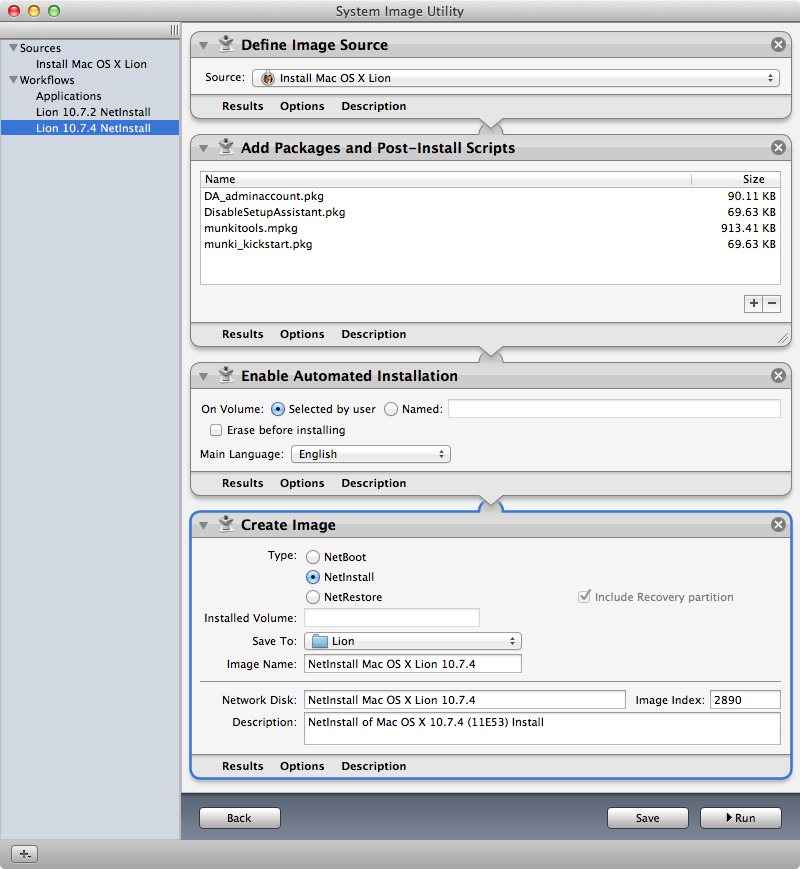
SIU NetInstall workflow for Lion
Shortly after Lion’s release, the popular image creation tool InstaDMG (http://code.google.com/p/instadmg/) was also quickly updated to work with Lion installs.
So we have the old familiar ways of preparing and installing a new OS X release:
- Manually. Before Lion, this might mean using a DVD, with Lion, it means running the “Install Mac OS X Lion” application.
- Using Apple’s System Image Utility (part of the Server Administration Tools) to create a NetInstall or NetRestore image, these, together with a NetBoot server allow you to install Lion over the network.
- Use DeployStudio to capture an image of a configured Lion boot volume, and deploy that image on other machines.
- Build a never-booted image using InstaDMG; use DeployStudio to deploy this image.
Some of these techniques can be combined; for example, it’s possible to use Apple’s System Image Utility to build a never-booted image and use it with DeployStudio. All of these deployment techniques are ones Mac administrators have used with prior releases of OS X.
Deployment Pieces
Let’s back up a bit.
What do you need in order to deploy Lion?
You’ll need two things at least.
The first thing you need is licenses or rights to install Lion on your machines. You might have purchased a maintenance agreement earlier, or you can enter into a new Volume License Agreement — contact your Apple sales team or reseller.
Once you have downloaded a copy of the “Install Mac OS X Lion” application, do not run it — the app self-destructs after it runs. Make a copy for safe keeping somewhere. Since Apple updates the “Install Mac OS X Lion” application for each update to Lion, you might want to organize your stored copies so you can find the 10.7 version of the app, the 10.7.1 version, the 10.7.2 version and so on.
Depending on the tools you are using for your deployment, you might need to extract the InstallESD.dmg file found inside the “Install Mac OS X Lion” application bundle. This disk image is the equivalent of a disk image of a OS X Install DVD from earlier releases of OS X. It’s located at Install Mac OS X Lion.app/Contents/SharedSupport/InstallESD.dmg.
If you really love installing OS X from DVDs, you can even use this disk image to burn an install DVD. Here are some web articles documenting the process:
http://lifehacker.com/5823096/how-to-burn-your-own-lion-install-dvd-or-flash-drive
http://reviews.cnet.com/8301-13727_7-20080989-263/how-to-create-an-os-x-lion-installation-disc/
New Deployment Options
Since the “Install Mac OS X Lion” application can upgrade an existing Snow Leopard volume to Lion without needing to boot from an alternate disk, we therefore know it is possible to do an “in-place” upgrade to Lion without needing a NetBoot or DeployStudio server (or an alternate boot disk). This opens up a few new deployment possibilities.
The “Install Mac OS X Lion” application sets up the machine to boot from resources found inside the InstallESD.dmg and then reboots the machine. The actual install of Lion happens while booted from the disk image. (So in actuality, installing Lion does require booting from an alternate disk — but in this case the alternate disk is a disk image.)
Install Mac OS X Lion Forensics
I spent a few days back in August 2011 figuring out exactly how the “Install Mac OS X Lion” application performed its magic. The following are the steps it seems to be doing, based on my investigation and experimentation:
- Create a Mac OS X Install Data directory at the root of the target volume.
- Mount the InstallESD.dmg disk image. (As a side-effect, the checksum of the disk image is validated. Since this is a big disk, this takes a while — around three minutes or so.
- Copy the kernel cache and boot.efi files from the disk image to the Mac OS X Install Data directory.
- Unmount (eject) the InstallESD.dmg disk image.
- If the InstallLion.pkg is on the same volume as the target volume, create a hard link to the InstallESD.dmg disk image in Mac OS X Install Data, otherwise copy the InstallESD.dmg disk image to that directory.
- Create a com.apple.Boot.plist file in the Mac OS X Install Data directory which tells the kernel how to mount the disk image to use for booting.
- Create a minstallconfig.xml file, which tells the OS X Installer what to install and to which volume to install it. It also provides a path to a MacOSXInstaller.choiceChanges file if one has been included in the package.
- Create an index.sproduct file and an OSInstallAttr.plist in the Mac OS X Install Data directory. These are also used by the OS X Installer.
- Set a variable in nvram that the OS X Installer uses to find the product install info after reboot.
- Use the bless command to cause the Mac to boot from the kernel files copied to the Mac OS X Install Data directory.
We can script all of these tasks. This means we have a few more deployment options. We could copy the InstallESD.dmg to a machine, and run a script to start the Lion install, much as the “Install Mac OS X Lion” application does. But even more usefully, we can create a Installer package that contains the InstallESD.dmg and the script. This means that we can use any software capable of installing Apple Installer packages to install Lion, just as if we were installing Microsoft Office or iLife.
git clone https://code.google.com/p/munki.installlionpkg/
Details on using these tools to create a Lion installation package are here:
http://code.google.com/p/munki/wiki/InstallingLion
This documentation is subtitled “Packaging the OS X Lion installer for use with Munki”, but the end result can be used with any software that can install packages, including, but not limited to: Casper, Absolute Manage, ARD, and even DeployStudio.
Installing Lion via Package
Installing Lion via an Apple Installer package opens up some interesting possibilities. Several software distribution systems offer a type of “self-service”, where administrators make certain software items available for end-users to install on demand. You could make Lion available as a self-service install and allow your users to install Lion themselves on their own timetable.
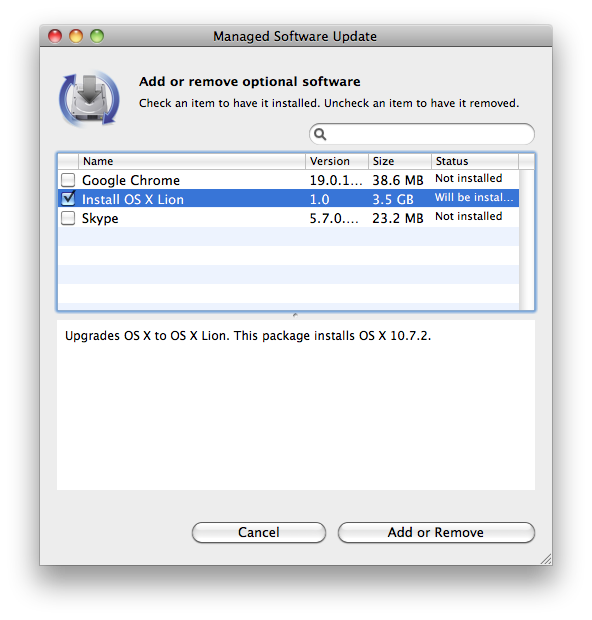
Self-service install of Lion using Munki


Since DeployStudio has an “Install package” task, you can also use DeployStudio to install Lion via InstallLion.pkg. Rich Trouton describes one way to do this in his blog here: http://derflounder.wordpress.com/2011/09/08/upgrading-to-lion-with-deploystudio/
Rich uses “postponed” installs in his blog post, which causes the first part of the install to be delayed until after the machine reboots. This works for upgrades to Lion if the volume to be updated to Lion is already bootable. But it’s also possible to use DeployStudio to install the Lion package “live”, that is, while still booted from the DeployStudio NetBoot image. This allows you to install Lion on an empty disk — or allows you to erase a volume, then install Lion.
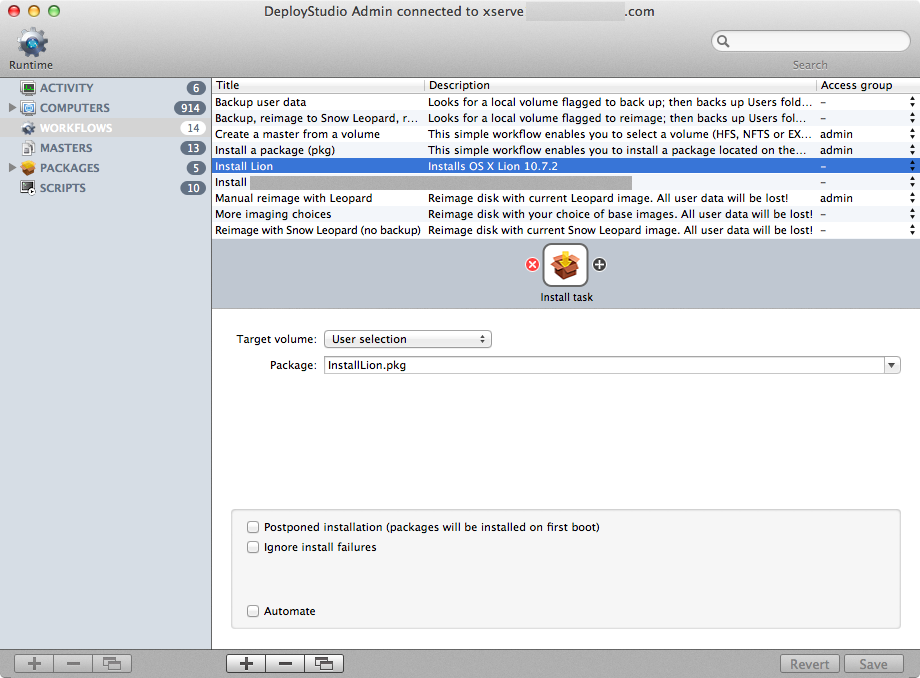
DeployStudio workflow to install Lion via package
Since DeployStudio can install Lion other, more “traditional” ways, why would you do this? One important reason would be to eliminate duplication of effort. Why create a Lion image for deployment to new machines and a Lion package to use to update currently deployed machines when you can have one tool that does both? The InstallLion.pkg tools allow you to do some customization of the Lion install, and even add some additional packages to the install. If one of the packages you add is the software for your software deployment system, you now have the equivalent of a “thin image”. DeployStudio plus InstallLion.pkg can install Lion and your deployment software (like Munki or Casper). After Lion is installed and the machine reboots, your deployment software takes over and installs and configures everything else. With this approach, you may never need to create an image again.
In order to do “live” package installs with a Lion DeployStudio NetBoot set, make sure you’ve built your DeployStudio NetBoot set with the June 4th, 2012 RC132 build or later: http://www.deploystudio.com/News/Entries/2012/6/4_DeployStudio_Server_1.0rc132.html
Earlier releases were either missing Python support under 10.7 or could not do “live” package installs.
Summary, or “Let Me Count the Ways”
Far from making OS X harder to deploy in an enterprise environment; Mac OS X Lion is arguably easier to deploy than prior OS X releases. Certainly there are a wider array of deployment options. Let’s review all the methods discussed here, together with some common variations.
- Manually by downloading Lion from the Mac App Store and running the “Install Mac OS X Lion” application.
- Extract the InstallESD.dmg from the “Install Mac OS X Lion” application. Burn a bootable DVD or create a bootable external drive. Install from either of those.
- Use Apple’s System Image Utility to create a NetInstall or NetRestore image. Boot from a NetBoot server and install Lion over the network.
- Use DeployStudio to capture an image of a configured Lion boot volume, and deploy that image on other machines.
- Build a never-booted image using InstaDMG; use DeployStudio to deploy this image.
- Use Apple’s System Image Utility to create a NetRestore image. Extract the deployment image from the NetRestore set, and use it with DeployStudio.
- Use a script to do the tasks performed by the “Install Mac OS X Lion” application, together with a copy of the InstallESD.dmg to automate a Lion upgrade.
- Use the InstallLion.pkg tools to create an Apple Installer package. Optionally customize the install and add additional packages. Install using your favorite software distribution mechanism.
- Manually install an Apple Installer package created with the InstallLion.pkg tools.
- Use a DeployStudio workflow to install an Apple Installer package created with the InstallLion.pkg tools. Doing so as a “live” install (instead of “postponed”) even allows for the installation of Lion on an empty disk.
Looking to the Future

If you manage Macs and you do not have an Mac developer account, you need to get one today so you can start testing with Mountain Lion now. Apple has announced they are moving to a yearly major OS release cycle — you can no longer wait for the “official” release to begin testing and planning for the future.
Additional Resources
Apple white paper on Lion deployment:
http://training.apple.com/pdf/wp_deploy_mac.pdf
Apple Lion Server Documentation on NetBoot:
https://help.apple.com/advancedserveradmin/mac/10.7/#apdCACEA65C-46BE-4DD2-AE2D-7CB14478C394
Apple Lion Server Documentation on System Image Utility:
https://help.apple.com/advancedserveradmin/mac/10.7/#apd0A163CE3-E8D6-4308-92E2-91725AA51FDF
Mac Developer Program:
https://developer.apple.com/programs/mac/

Greg Neagle
Some guy who won't stop broadcasting his opinions about lots of Mac administration topics. Oh, and creator of Munki, Reposado, and InstallLion.pkg. He works for a large animation studio.
Follow Me:
